
Start with a scene you can judge in one glance: a paper boat floating beside a window on a rainy afternoon. Create the still in Dreamina, animate one small movement, then add a title and ending in a video editor. The finished exercise is a 12-second vertical mood video; you do not need to generate all 12 seconds at once.
Making the still first gives you a useful stopping point. You can reject a crooked boat or confusing reflection before spending a video generation on it. The prompts below are original practice examples, not a record of a Dreamina workflow test. Product instructions were checked against official pages on September 9, 2026.
Contents — jump to a section
What to prepare before opening the generator
You need a Dreamina account with access to image and image-to-video generation, a place to save the files, and a video editor that can trim clips and add text. CapCut is one finishing option. Use a vertical 9:16 project throughout this exercise.
Dreamina is the service you open; Seedream is an image-model family and Seedance is a video-model family available through that service. Select a Seedream image option and a Seedance option that accepts an uploaded starting image. The names, available controls and credit charge shown in your account are the ones to follow; this exercise does not require a particular paid version. Dreamina documents image creation, reference uploads and image export in its image-generation walkthrough.
Keep this small shot plan next to you:
| Edit time | Picture | Job |
|---|---|---|
| 0–2 seconds | Hold the approved wide still | Let the viewer read the scene |
| 2–7 seconds | Boat rocking gently | Add one believable movement |
| 7–10 seconds | Closer crop, ripples around the bow | Show a detail the wide shot hides |
| 10–12 seconds | Hold the final still, add a short line | Give the ending time to register |
These are editing lengths. For the five-second moving section, select a supported duration of at least five seconds, with extra time for trimming if available. A shorter usable clip can be followed by a hold on its last clean frame to fill the allotted section.
1. Generate the starting image
Open Dreamina's image-generation area, called AI Image in the current walkthrough. Put Prompt A in its image prompt box. Set the aspect ratio to 9:16 in the controls, select an available image resolution, and generate. Resolution belongs in the settings; adding “8K masterpiece” to the prompt will not set the output file dimensions.
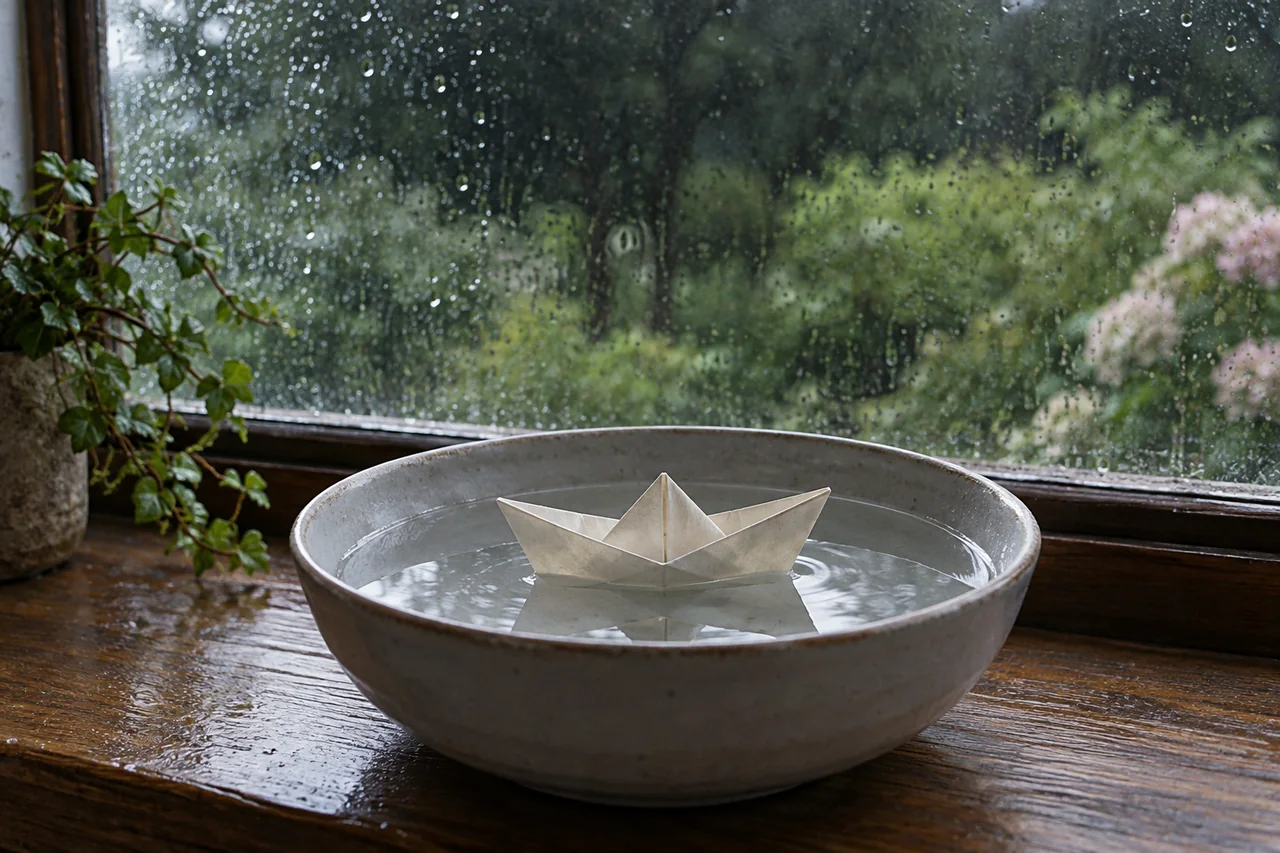
Prompt A — the wide still
A small cream paper boat floats in a shallow round ceramic basin on a wooden windowsill. The boat has a clear folded triangular sail and an intact hull. Soft overcast daylight comes from the window on the left. Rain beads on the glass behind it; a muted green garden is out of focus beyond the glass. Eye-level close shot with the entire boat visible, believable paper texture and water reflections. Leave quiet dark space in the upper quarter for a title added later. Natural photographic color, simple composition, no printed writing.Choose the image with the most readable boat, not the busiest raindrops. Inspect the sail's fold, the boundary between paper and water, and the rim of the basin. A doubled rim or a reflection that resembles a second boat is a reason to repair the image now.
For a localized repair, select the affected area in the available image editor and paste this instruction into its edit prompt. If regional editing is unavailable in your selected flow, regenerate the still with the same brief and choose a cleaner result.
Prompt B — repair the still before animation
Replace the selected malformed paper fold with one simple triangular cream paper sail connected to the existing hull. Keep the boat in the same position. Preserve the basin, waterline, window light and background. The result is a single intact paper boat.Save the approved still as boat-wide-v1.png. Save the prompt and model name beside it. That pairing makes it easier to return to the same scene after an experiment goes wrong.
2. Animate the wide shot
Open Dreamina's image-to-video flow and upload the approved still as the starting image. Put Prompt C in the video prompt box. Use a short duration near five seconds if offered, retain 9:16, and keep the first experiment at an ordinary preview resolution. Dreamina's image-to-video guide documents this upload–prompt–settings–generate sequence.
Prompt C — one movement, fixed camera
The boat rocks very gently once as a small ripple passes beneath it, then settles. Its folded shape remains rigid and its position stays near the center of the basin. The camera is fixed. Window light stays constant throughout this single continuous shot.The image already specifies the boat, materials and weather. The video prompt adds a change over time. Avoid copying Prompt A into this box and appending “make it move”: that gives the model much more scene description than motion direction.
Play the result once at normal speed. Then scrub through the middle and last frame. Check whether the sail changes into a different fold, the boat slides through the basin, or the window begins to pulse. A beautiful first frame cannot compensate for a broken second half.
Prompt D — if the boat deforms
The boat remains completely stationary with its folded shape unchanged. Only a faint ripple moves slowly across the water around the hull. The camera and lighting remain fixed for the entire shot.Replace Prompt C with Prompt D and reuse the same source. This removes the boat's movement rather than stacking more warnings onto the old instruction. If the remaining ripple still distorts the hull, use the still with a gentle editor zoom instead.
3. Make the detail shot from the approved image
Duplicate the wide still in an image editor and crop closer to the bow, keeping a strip of water around it. Retain 9:16 and avoid enlarging so far that paper edges become visibly soft. This crop comes from the approved image, so you are not asking a new generation to invent a matching boat.
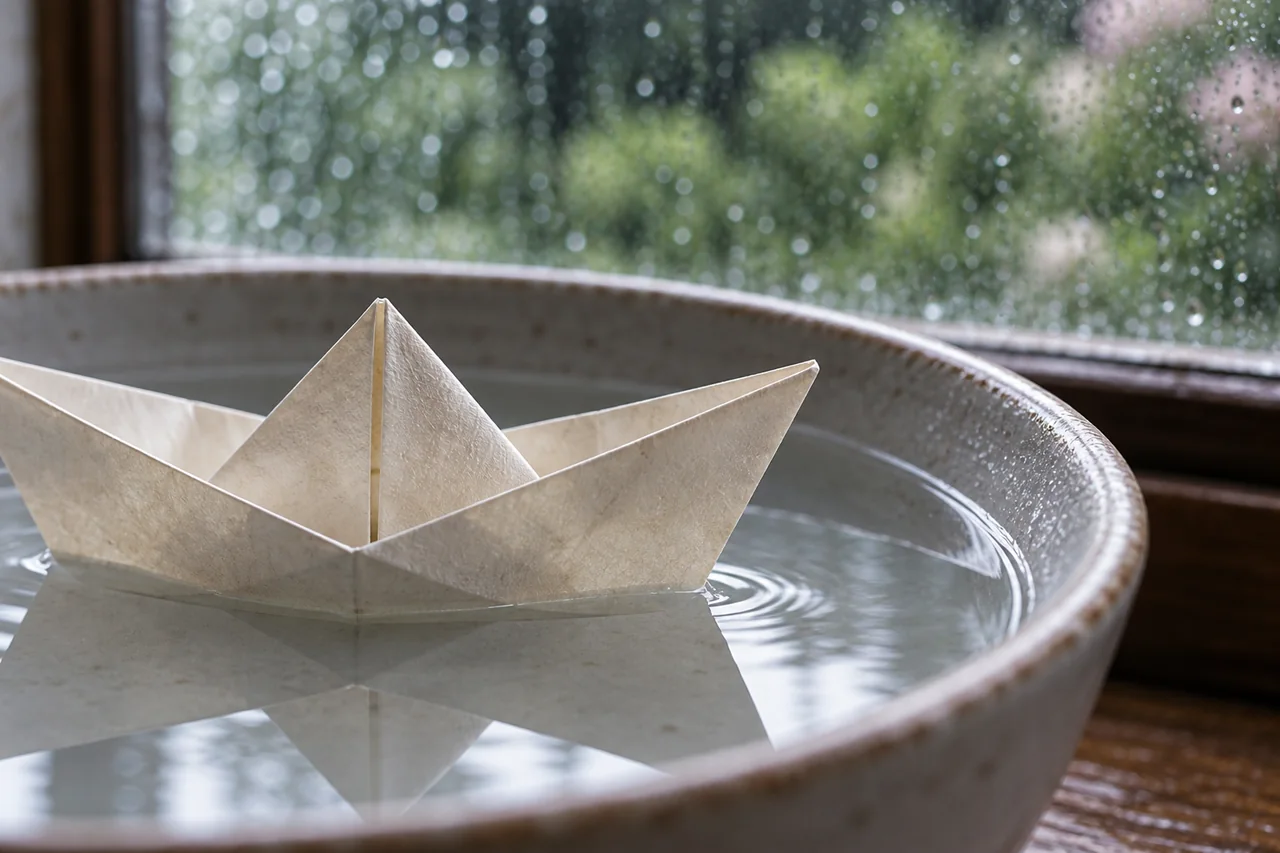
Upload that crop as a new starting image and paste Prompt E into the video box. Keep the same model and basic settings for this first attempt.
Prompt E — the bow detail
A faint water ripple travels from the lower left toward the paper bow and fades. The boat and paper folds stay still. Locked close-up camera, constant soft window light, one continuous shot.Use only three stable seconds in the final edit. If the close crop makes the boat look different, omit this insert and fill its three seconds with a longer clean wide shot or a hold on the approved still. A second shot should reveal something; it does not earn its place merely because it took credits to generate.
4. Assemble and export the 12-second version
Import the two stills and usable clips into your editor. Arrange them using the timing table, with straight cuts. For the final two-second hold, freeze the last clean frame of the preceding shot or place its approved source still after it; check that the join does not jump. Dreamina's CapCut finishing guide describes moving generated media into an editing workflow; the timing and design here are our suggested exercise.
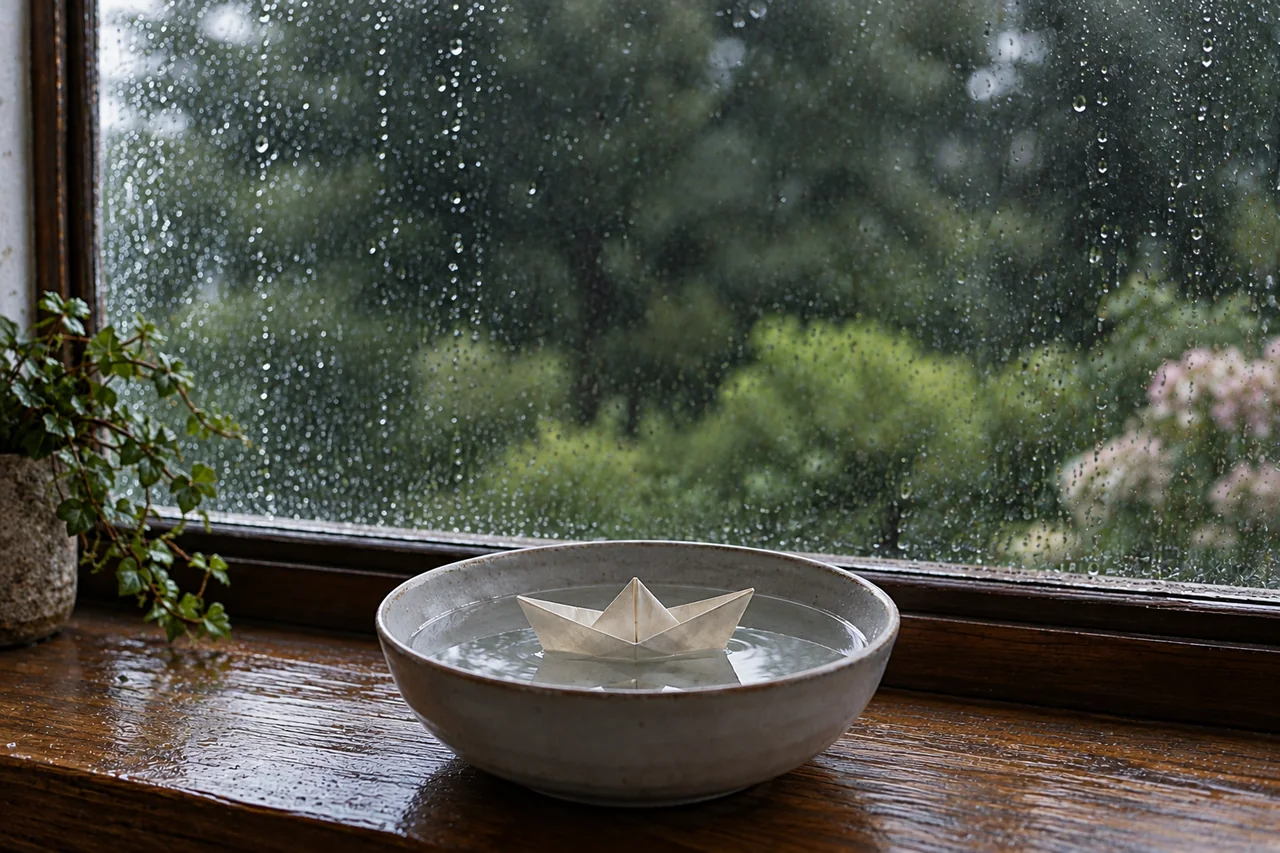
Add the opening line “A small pause” over the first still and the ending “Let the afternoon slow down.” Keep the text away from the boat. Add your own recorded rain or a track whose permitted use you have checked, with a short fade at each end. If the generated clips contain unwanted audio, mute it before adding the continuous rain bed.
Export a 9:16 MP4. A 1080 × 1920 project is a practical delivery target when your source supports it; enlarging a smaller clip will not restore missing folds or texture. Watch the exported file on a phone, with sound and then muted. The story should still read both ways.
Questions that come up on a first attempt
Can I use my own photo instead?
Yes: skip image generation and begin with a clear photo you have permission to use. Crop it before upload, then rewrite only the movement prompt. An object half hidden behind another object makes the animation exercise harder.
Why not ask for the full story in one video prompt?
You can experiment later. Here, separate short shots let you repair the bow insert without discarding a good wide shot, and the ending text remains editable.
Should I add a negative prompt?
Only use a separate negative field when the chosen model actually offers one. These prompts use plain positive instructions and do not depend on hidden negative-prompt syntax.
When is the clip finished?
Stop when the boat retains its shape, the water moves continuously, both cuts feel intentional, and the two text cards are readable on a phone. Try the three-shot food-video exercise next, or use the image and video tool finder to locate another service with image-to-video input.
Sources
Official workflow pages checked September 9, 2026. Dreamina account access, generated output quality and actual credit consumption were not tested.