
For a product video, start with a photograph of the item you actually sell. Use OpenArt to explore its setting, then send an approved still to Kling through Higgsfield for a restrained camera move. Use only motion footage that still shows the product and label accurately, and finish with the original packshot and real logo in your editor.
Our worked example is a 12-second vertical video for an amber glass bottle with a black screw cap and cream label. Adapt the physical description to your own item. This is a proposed production exercise, not a tested OpenArt-to-Higgsfield workflow or a promise that AI will preserve a label exactly. Official workflow sources were checked September 9, 2026.
Contents — jump to a section
Separate the product from the scene you want to build
Take a front or slight three-quarter photograph with the cap fully visible and the label facing the camera. Use soft daylight and a plain background. Keep the original at full size. A screenshot from a shop page is a poor starting file if the bottle is tiny or compressed.
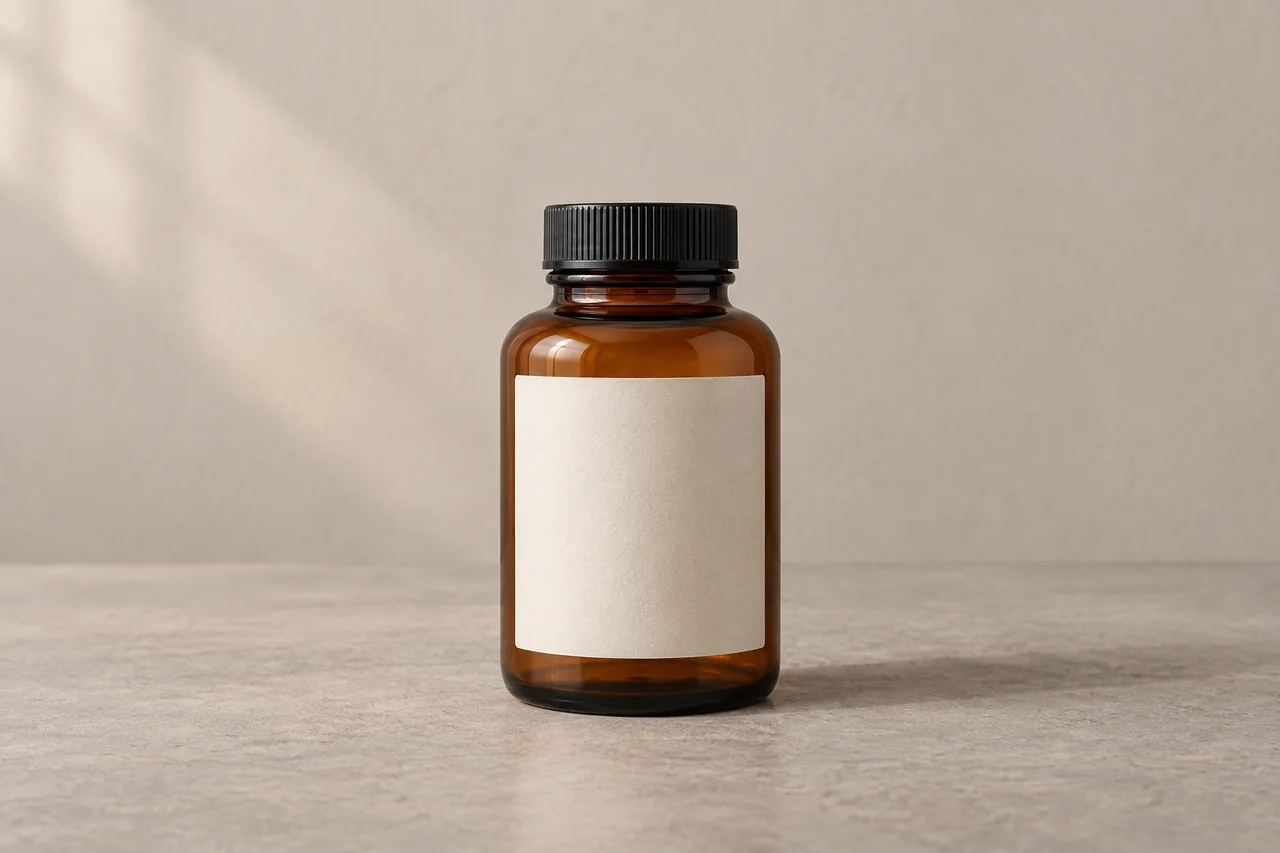
Prepare three assets: the original photograph, an approved transparent logo, and the exact product name you will type during editing. If the label matters to purchase, also keep a sharp label close-up. Do not ask the generator to infer ingredients or volume from unreadable print.
Decide what is fixed and what can change before writing the prompt:
| Keep fixed | Can change for this exercise |
|---|---|
| Bottle silhouette, cap, glass color, label layout | Wall color and empty tabletop |
| Actual number of items and included accessories | Amount of empty space around the bottle |
| Real product name and package size | A subtle camera approach |
OpenArt and Higgsfield are the services; Nano Banana 2 is one reference-capable image option documented by OpenArt, and Kling is the video-model family selected inside Higgsfield. A subscription to one service does not establish access in the other. Confirm the required image input and the displayed generation charge in both accounts before beginning.
Build the product still in OpenArt
Open Create → Create Image, choose a model that accepts references, and upload the original product photograph. In OpenArt's image-generation guide, reference models use the image as visual input; its image-to-prompt feature only produces a text description. For this job, keep the actual reference attached.
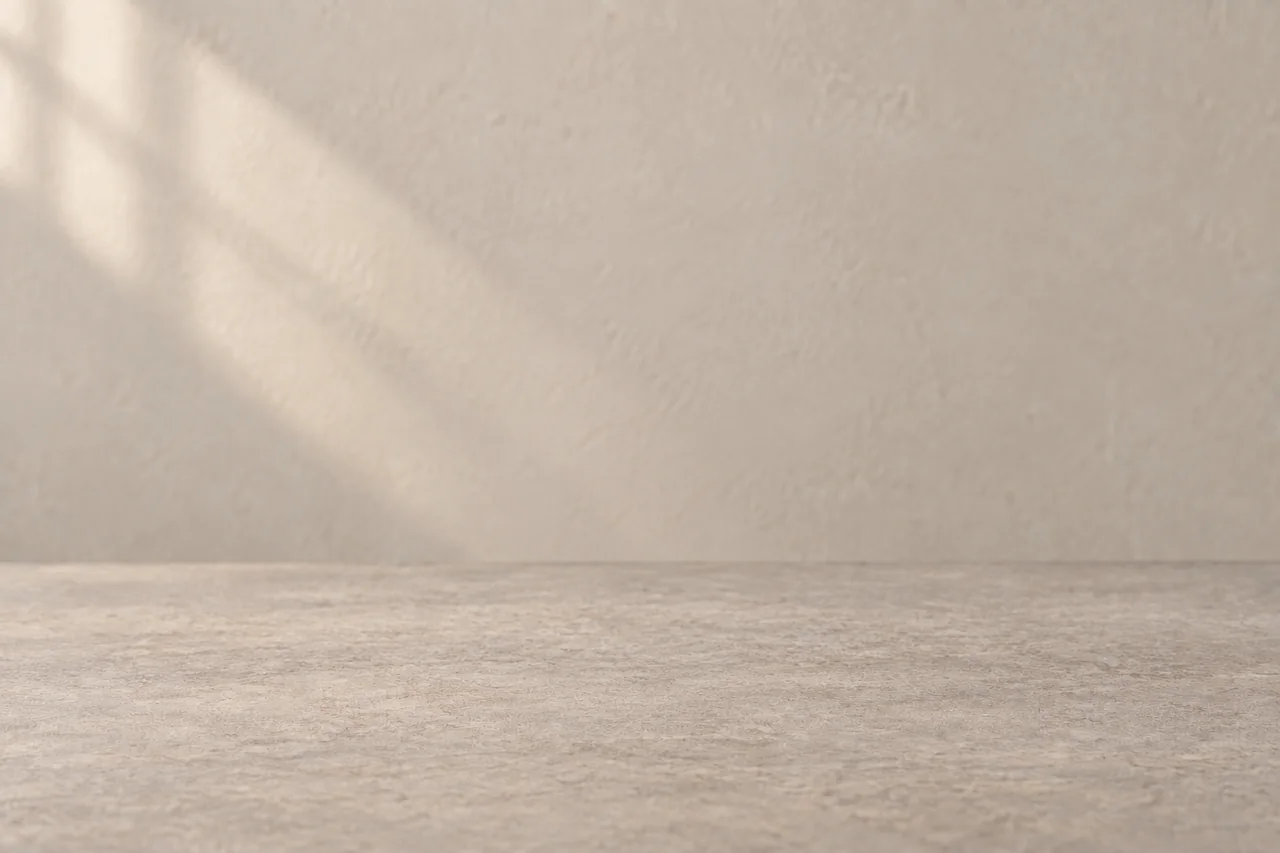
Set a 9:16 canvas and paste the following into the image prompt box. Leave room above the bottle because the title will be added later.
Prompt 1 — reference-led product still
Use the uploaded bottle photograph as the product reference. Keep its bottle silhouette, black screw cap, amber glass color, cream label proportions and front-facing orientation. Place the same bottle on a matte warm-gray tabletop against a soft beige studio wall. Soft light enters from the upper left, with a short grounded shadow to the right. The entire bottle is visible in the lower two-thirds of the frame, with empty wall above. One bottle only, natural product photography, no added ingredients, packaging or printed claims.Compare the result to the original at equal display size. Look at the cap height, shoulder curve, label width and glass color, then zoom into the lettering. “Looks like an amber bottle” is not enough: it must still look like this bottle.
If the scene works but there is an unwanted decoration beside the product, open Edit Image, use Area Edit to select only the decoration, and give that selected region a specific replacement. OpenArt documents region selection in its photo-editor instructions.
Prompt 2 — clean the scene around the product
Replace the selected decoration with the same empty warm-gray tabletop and soft beige wall. Continue the existing surface texture and lighting through that area. Leave the bottle, its contact shadow, cap and label unchanged.Do not repeatedly repaint the label with generative edits. If its text or proportions are wrong, the more controllable route is to use a clean cutout from the original photo on a separate background. A layer editor can keep those original product pixels intact.
Prompt 3 — background for the cutout fallback
Put this in OpenArt's image-generation prompt box without the product reference. Generate an empty scene, then composite the original cutout yourself.
An empty matte warm-gray tabletop meeting a soft beige studio wall. Front-facing product-photography view from slightly above table height, soft window-like light from the upper left. Quiet natural surface texture, no objects and no writing. Leave the lower center clear for a small product to be placed later.Match the original photo's light direction, size the cutout naturally, and add a modest contact shadow below it. If this needs a radically different camera angle, retake the product photo instead of warping the label to fit.
Animate the approved still with Kling on Higgsfield
Save the approved composition locally. In Higgsfield's video-generation area, select a Kling model and its image-input flow, then upload that saved image. Higgsfield documents model choice, image input and generation in its first-generation guide; its Kling page confirms Kling access through the service. The page's quality claims are not independent test results.
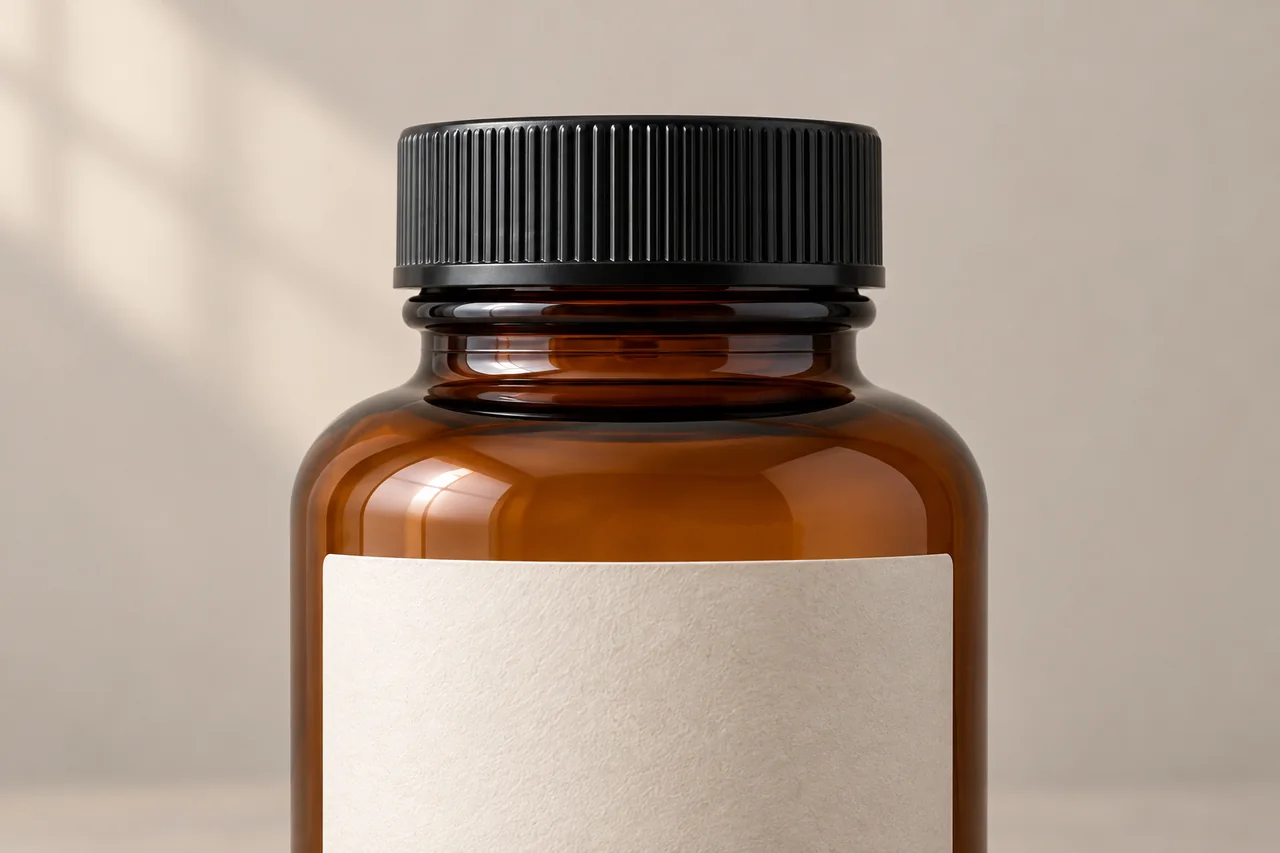
Start with a single short shot, around five seconds where offered, in 9:16. Keep optional camera-effect presets off for this experiment, so they do not compete with the written direction. Put Prompt 4 in the video prompt field, not the image-generation field.
Prompt 4 — a small camera approach
The camera makes one very slow, shallow push toward the bottle. The bottle stays upright and motionless on the tabletop, with its front label facing the camera throughout. Its cap, silhouette, label geometry and contact shadow remain stable. Lighting remains constant. One continuous product shot.Do not request a full orbit from one frontal photo. The model would have to invent unseen sides and the back label. The tiny approach here is an editorial choice to keep the view close to the supplied evidence, not a guarantee of exact preservation.
Scrub the result frame by frame around the middle and ending. Watch for a cap that grows, text that crawls, a moving contact shadow or glass that turns opaque.
Prompt 5 — reduce movement if the label drifts
The camera is locked. The bottle remains completely stationary, with its shape, cap and label position unchanged. Only the far background softly shifts out of focus. Constant lighting, one continuous shot.Reuse the same approved still and replace the previous video prompt. If lettering still changes, omit that generated product shot. Use the original packshot with a small scale animation in your editor; animate the empty background separately if you need extra motion. An end card cannot excuse a visibly false package earlier in the video.
Cut a 12-second product video
Use four seconds of the strongest acceptable motion shot, three seconds of a tight crop from the real product photo, and five seconds of the original packshot with the approved logo and product name. These are proposed edit lengths; trim generated files to fit.
Keep the final logo as a normal image layer. Place it beside or above the bottle. Replacing a moving curved bottle label requires perspective tracking and closer inspection, so use the separate brand card unless you can verify that compositing work. Type the real product name yourself. Avoid invented claims about benefits, awards or included accessories.
Match white balance between the generated setting and real-photo insert. Add music or sound you have permission to use, mute unwanted generated audio, and use straightforward cuts. Export a 9:16 MP4 at 1080 × 1920 if the source holds up at that size. View the export on a phone and pause wherever the label is visible.
Questions before using the video for a shop
What if I only have one photo?
Keep the camera close to its original angle. A front shot can support a modest push, a crop and an end card; it does not document the product's back or an opening mechanism.
Can AI add condensation or a splash?
For an invented concept, those are creative choices. For a real product, first decide whether they imply a material, use or property the product does not have. This example keeps the bottle dry and closed.
Is a sharp first frame enough?
No. The cap, silhouette, color and label must remain acceptable throughout the portion you use. Cut before a defect only if the remaining segment still makes a useful shot.
Do these tools make the result commercially cleared?
No blanket clearance is established here. OpenArt's editor page makes commercial use plan-dependent. Check the service/model terms for your account and your rights to the product photo, brand assets and sound before using the finished advertisement.
For an easier motion subject, try the food-video workflow. Use the image and video finder to locate reference-capable tools before changing subscriptions.
Sources
Official pages checked September 9, 2026. OpenArt and Higgsfield prompt outputs, label retention and account costs were not tested.