
For a portrait that feels alive, try a brief blink with a fixed camera. A large smile, head turn and moving hair in the same short clip give you several details to correct at once. This guide uses Krea to prepare a portrait and pass it to an image-to-video model such as Kling or Veo, then check whether it still reads as the same person.
The target is a quiet five-to-eight-second portrait insert for an introduction or personal video. It contains no speech and makes no person appear to endorse a product. The prompts are original practice examples; no generated face-retention test was performed. The official workflow pages were checked September 9, 2026.
Contents — jump to a section
Choose a photograph that does not need a new face
Use your own portrait or a photo whose subject has agreed to the animation and intended use, with permission to use the photograph itself. Keep the original unchanged. Explain the proposed movement before generating; permission to use a still photo does not tell you whether its subject is comfortable being animated.
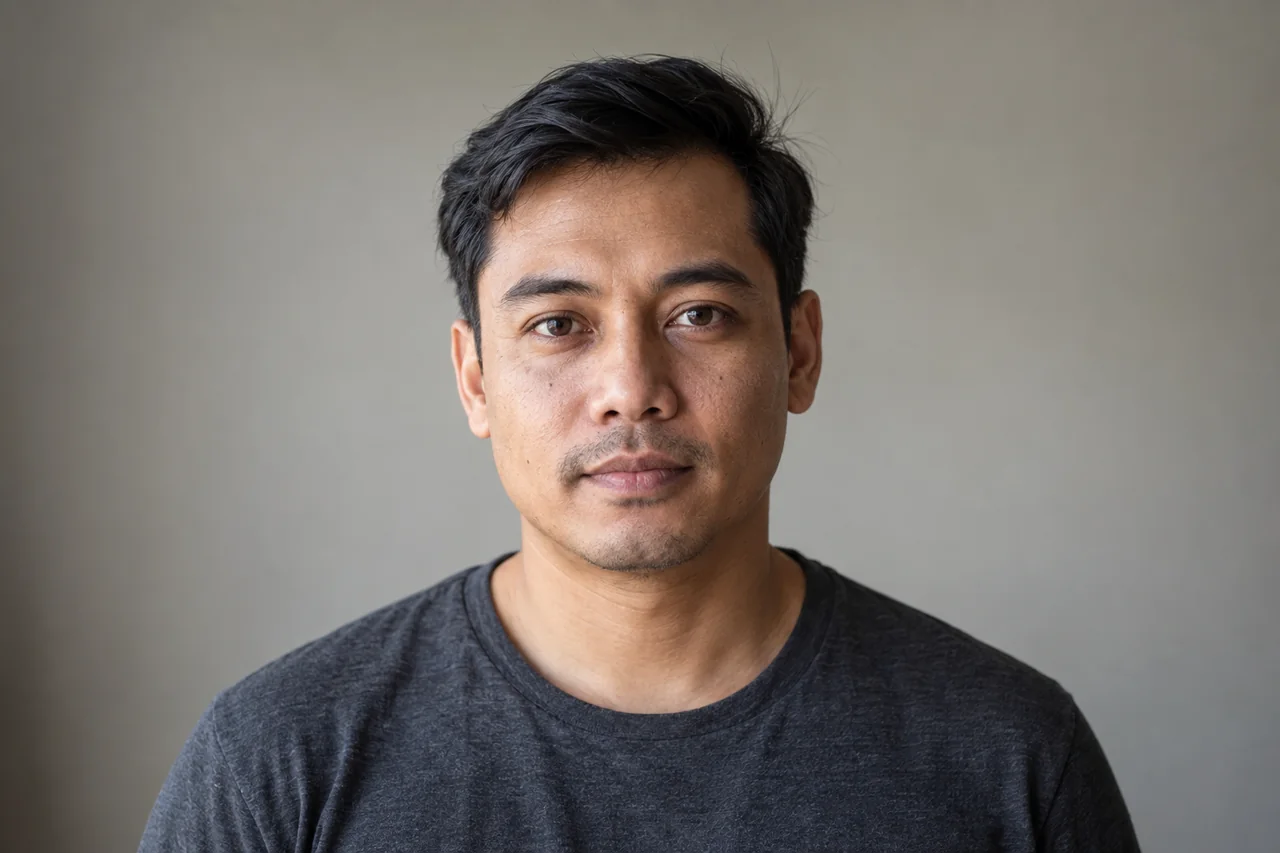
Choose a clear, fairly frontal adult portrait, with the eyes visible, a relaxed closed mouth and both shoulders in frame. Avoid a source with motion blur across the eyes, hands over the face or strong lens reflections. If you cannot see the facial detail in the original, the generator must invent it.
Write down three or four recognition anchors you can actually see: the spacing of the eyes, eyebrow shape, jaw outline, hairline or a visible mole. Add the existing expression. This is a visual comparison note, not an instruction to exaggerate those features in the prompt.
If you want to practice without a real subject, create a fictional adult portrait first. Krea documents text prompts, model selection and image settings in its image-generation guide. Use an image model available in your account and paste the next prompt into the image field.
Optional starting-image prompt — fictional adult
A fictional adult man in his thirties with short dark hair and a calm neutral expression, looking toward the camera with his mouth comfortably closed. Head-and-shoulders portrait, both eyes clearly visible, hands outside the frame. Plain charcoal shirt against a quiet warm-gray wall. Soft window light from the left, realistic skin texture, natural facial proportions, gentle background blur. Straight-on eye-level framing with space above the head, natural portrait photography, no jewelry or writing.Set 9:16 for a vertical portrait insert or match the format of your wider edit. Choose one image and treat it as the sole identity reference for this exercise. Do not generate a fresh person for each animation attempt.
Prepare the frame in Krea Edit
Open Edit, upload your portrait and first make an ordinary crop. Keep space above the hair and below the shoulders so a tiny movement will not immediately meet the frame edge. If the existing portrait is already clean, skip generative editing entirely.
For a distracting object behind the head, use Change Region to select only the background. Krea's Edit documentation describes a brush or other region selection followed by a plain-language instruction. Keep the selection clear of hair and ears.
Background edit prompt
Replace only the selected background distraction with the same plain warm-gray wall. Continue its existing soft light and texture. Keep the person's face, hair, ears, clothing and silhouette unchanged.Compare the edit with the original at equal size. Reject it if the jaw, eye shape or age has changed, even when the background looks cleaner. Return to the original and tighten the selected area. For small brightness or color corrections, prefer the ordinary image-adjustment controls over asking the model to redesign the lighting around the face.
Save the approved portrait and record whether it was cropped, adjusted or generatively edited. You now have a clear baseline for the video stage.
 Visit Krea ↗
Choose the video model, then keep the first movement small
Krea is the application. Kling and Veo are video-model families you can select inside it. Krea's video documentation lists both families and describes a start-image input, model picker and separate duration, aspect-ratio and resolution controls. Not every model exposes every control; check the options and charge actually shown in your account.
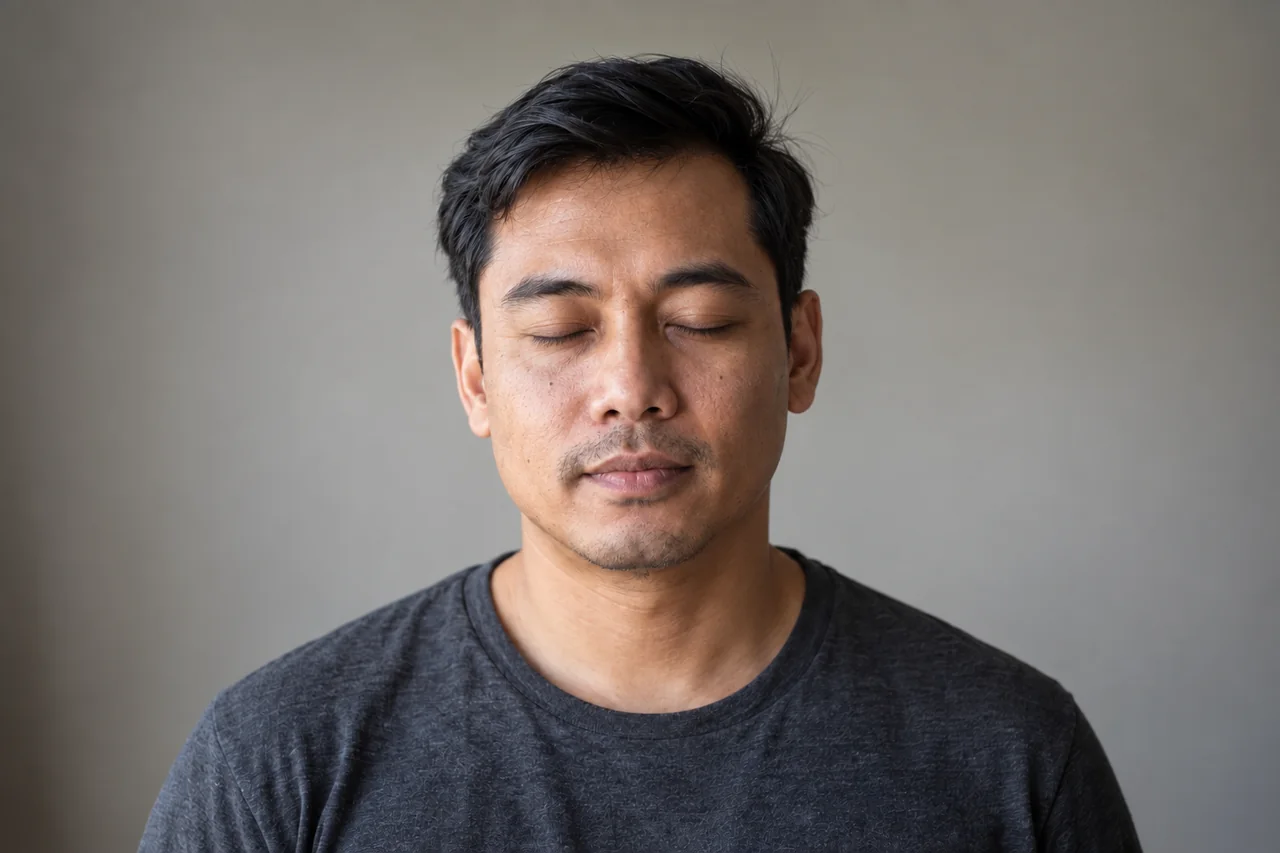
Send the approved image from Edit to video generation, or open Video and upload it as the start image. Choose an available Kling or Veo option that accepts the input. Select one short duration near five to eight seconds, the same aspect ratio as the portrait, and an ordinary preview resolution. Leave the end-image input unused for this first attempt.
Paste the next block in the video prompt field. The source image already contains the person and setting; this prompt describes only what changes.
Motion prompt — a single quiet blink
The person makes one brief, relaxed blink and returns to the same gaze. Keep the head almost motionless and the existing closed-mouth expression unchanged. The camera is fixed. Preserve the facial proportions and hairstyle from the starting image. Lighting remains steady throughout one continuous portrait shot.This does not require a motion brush, a seed or a negative-prompt field. Do not add commands for unsupported controls. If a preset is already applying a camera move, disable it where the interface allows before testing the written fixed-camera instruction.
Inspect the face where it is most likely to change
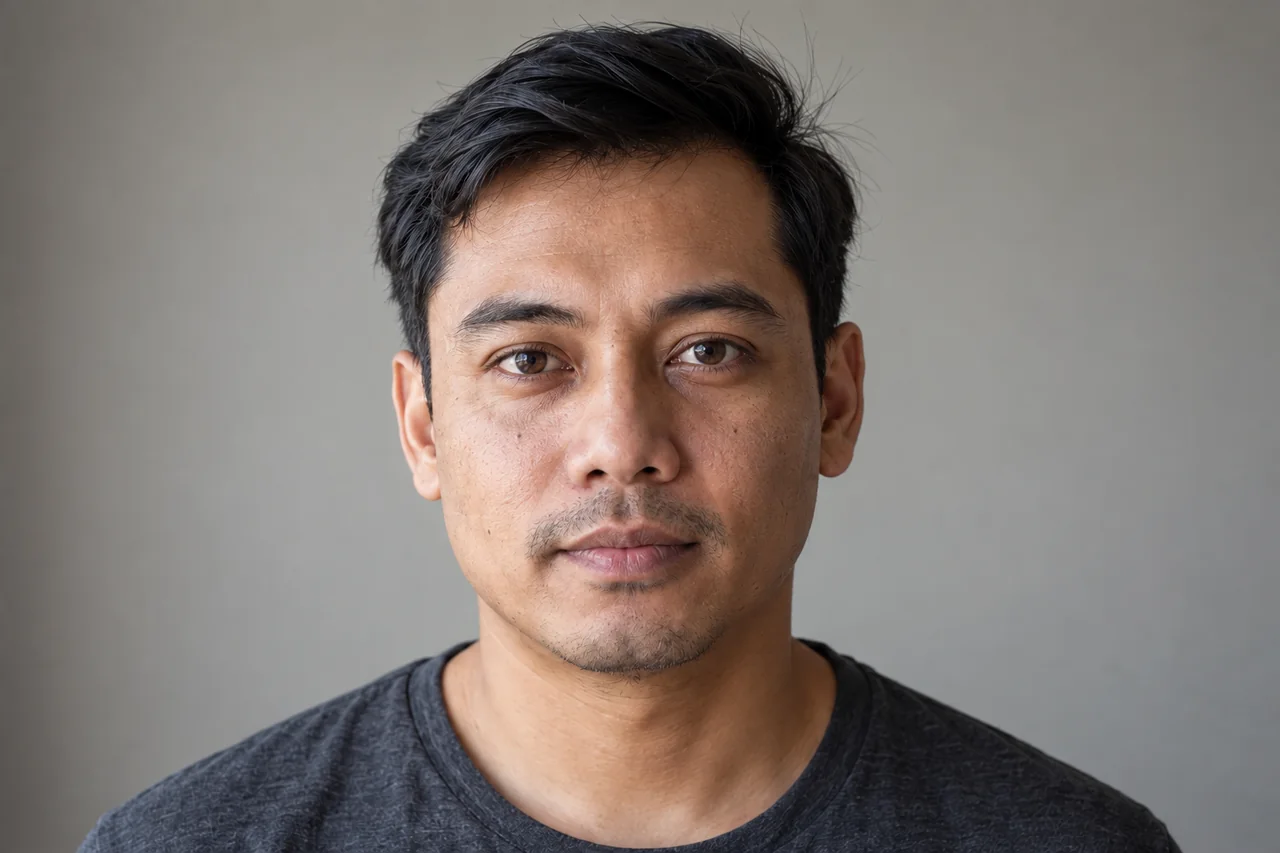
Watch at normal speed first. Does the person appear calm, or does the blink look like a wince? Then pause at the first frame, just after the eyes reopen, the middle and the ending. Compare each with the baseline.
| Detail | What would make you reject the take |
|---|---|
| Eyes after the blink | Different iris color, uneven reopening or changed spacing |
| Mouth | New teeth, lip movement resembling speech, or an invented smile |
| Jaw and hairline | A different face outline or hair suddenly growing |
| Background | Warping around the ears or light pulsing behind the head |
An occasional bad frame can become obvious after compression or when the video is paused. Do not judge identity only from a small autoplay preview.
Repair prompt — when the blink changes the eyes
Reuse the same portrait and replace the first motion instruction with this simpler action.
The person holds the original gaze with eyes open and mouth closed. Only a very small natural breathing movement is visible in the shoulders. Keep the head, facial features, expression and hairstyle unchanged. Locked camera and constant lighting throughout.If the face still drifts, stop animating the person and use the following as a separate attempt. It shifts the movement into the background.
Alternative prompt — let the background carry the motion
The person stays still, preserving the starting gaze, expression and facial proportions. A soft patch of light moves very slowly across the distant background wall only. The light on the face stays constant. Fixed camera, one quiet continuous portrait shot.The fallback can also fail if the light crosses the face. A completely still portrait with a slow crop change in your editor remains a valid finish. The goal is a recognizable introduction, not proof that every face can be animated successfully.
Compare Kling and Veo only when the comparison has a purpose
If the first model cannot produce an acceptable take after you simplify the motion, try the same source and motion prompt in another available model. Keep the aspect ratio and approximate usable duration the same. Compare the reopened eyes, original expression and number of stable seconds, not just which clip has more movement.
Record the actual charge displayed for each attempt. These notes tell you which model works for this portrait and action; one portrait does not establish a universal winner. Avoid buying a longer subscription because one preview looks impressive.
Visit Krea ↗Trim and export the portrait insert
Bring the selected clip into your editor. Trim any unstable head or tail, preserving a moment of stillness before and after the blink. Add the person's approved name as a text layer if this is an introduction. Keep it below the face and proofread it at phone size.
Mute unwanted generated audio. Add only sound you intend to use, such as a music bed licensed for the project. Export a vertical MP4 at a resolution supported by the original file; 1080 × 1920 is a useful target when the material holds up. Watch the actual export with the original photograph beside it.
If you want a loop, check the join before posting. A blink clip is not automatically seamless. Cut at matching quiet moments, and reject a dissolve that makes the face appear doubled.
Common follow-ups
Can this restore an old family photo?
This workflow adds invented movement. It does not recover how the person actually moved. Keep the scan and any restoration separate, label the animation appropriately, and check with the people involved before sharing.
Can the person speak next?
That is a separate talking-portrait task involving the script, voice and consent to those words. Do not add speech to this exercise merely because a video model offers audio.
Is a head turn better than a blink?
Only if you need it. A turn reveals facial surfaces absent from a frontal photo, so it asks for more invention. Start with an image already close to the intended angle.
For an introductory exercise without a face, use the Dreamina still-to-video guide. The image and video finder helps locate other services with the required input mode.
Sources
Official workflows checked September 9, 2026. Generated identity retention, account availability and actual credit use were not tested.