

An event page can repeat the same schedule in its hero, agenda, registration card and confirmation message. One late change can leave four different answers. This checklist uses a fictional workshop to compare every public detail with one approved event sheet before the link is shared.
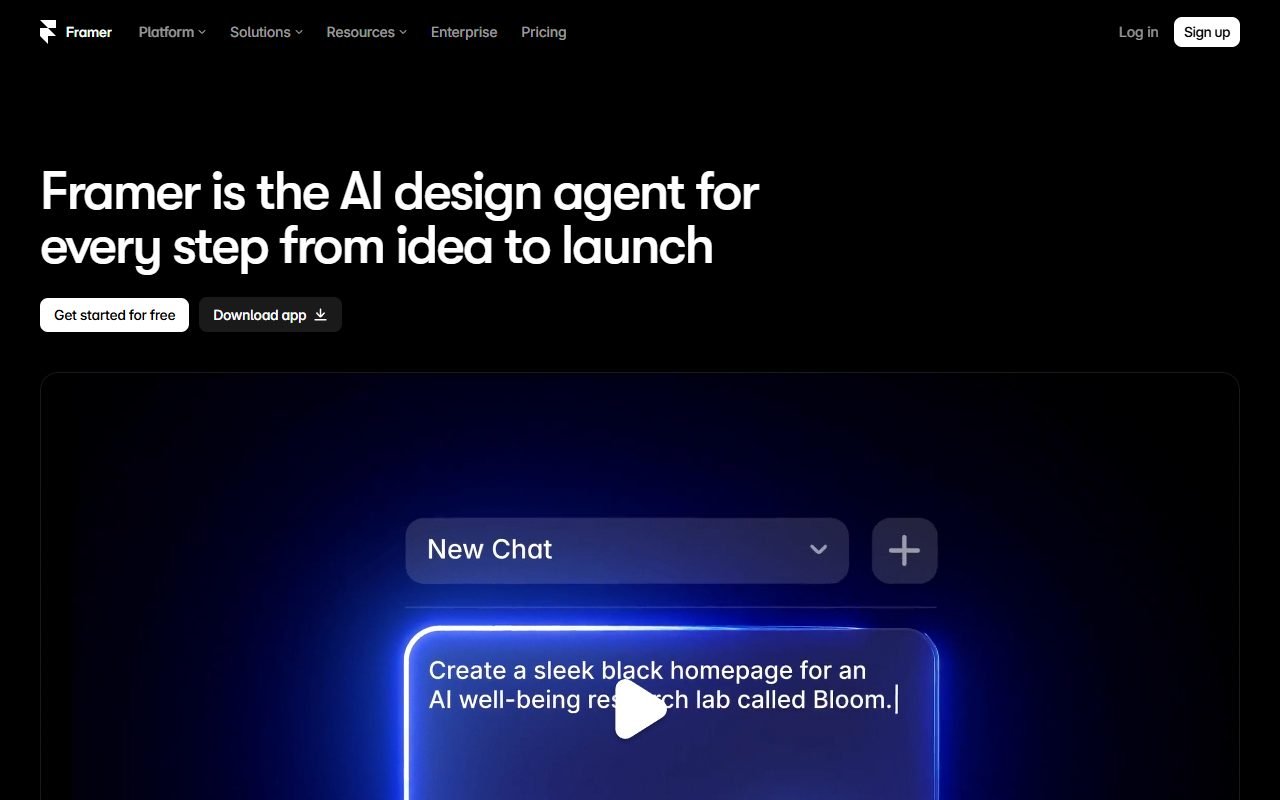
Framer currently provides an editable website canvas, CMS and publishing workflow. It can support an event-page prototype, but it does not make the organiser's schedule or venue facts correct. Framer product information
Contents — jump to a section
Make one approved event sheet
Record the event name, calendar date, start and finish time, timezone, venue name, full address, online link state, capacity, registration deadline and contact owner. For the fictional “Small Shop Photo Workshop,” use 18 October 2026, 13:00–15:00 Asia/Bangkok, Studio B, and registration closing 16 October. These are sample values, not a real event.
Use Framer to prototype the event page, then compare every public schedule and registration detail with this one sheet. Do not ask AI to fill a missing room number, deadline or access link.
Check every repeated detail
- Search the preview for the date, each time and the venue name. Compare the hero, agenda, FAQ, registration card and footer.
- Write the timezone next to the first time shown. For an online audience, include a calendar file or conversion route that preserves the timezone.
- Check that the venue label, map destination and arrival instructions describe the same place. A map pin alone is not an accessible arrival plan.
- Follow the registration action. Confirm whether it opens a form, ticket service, email or waitlist and whether the button names that action accurately.
- Test the closed, full and moved-session states with fictional data. Remove “Seats available” when the destination no longer accepts registrations.
- Repeat at a narrow phone width and with keyboard navigation. Check that long addresses, time ranges and the action remain readable.
Use Framer's help centre when current controls differ from the template. Account permissions and integrations may change the exact procedure.
 Visit Framer ↗
Work through one schedule change
Suppose the workshop moves from 13:00 to 14:00. Update the approved sheet first, then mark every occurrence on the page. The check passes only when the hero, agenda, registration destination, confirmation text and downloadable calendar agree. Record who approved the change and when it was published.
If an external ticket service still shows 13:00, pause promotion and show a clear correction rather than hiding the conflict. PickByTask has not tested a live registration or ticket integration in this exercise.
Keep a manual fallback
When the registration form fails, provide a monitored email address and state what information to send. When the venue is uncertain, publish the confirmed city or online status and say when final instructions will arrive. Do not invent a precise address to make the layout look complete.
Re-run the checklist after editing a CMS item, template, domain or registration destination. The related Framer service-page content check helps remove unsupported promises from the event offer.
Product and help entry points were inspected on 25 September 2026. This is a proposed content test using a fictional event, not a live Framer implementation or registration result.