
When a cup melts, a face changes or the background pulses, pause before adding another paragraph to the prompt. Inspect the starting image, find the first bad frame, and change one cause at a time. A clean three-second section may already be enough for the edit; a defective source image needs repairing before another video attempt.
This original exercise uses a ceramic cup beside a window. It is a proposed troubleshooting workflow, not a recorded Dreamina or Higgsfield generation test. Tool documentation was checked on 9 September 2026; available models and settings still depend on your account.
Contents — jump to a section
Locate the first visible mistake
Download the original clip and open it in a timeline editor. Compare normal playback with individual frames at the beginning, one-quarter, halfway, three-quarters and end. If only the browser preview stutters, examine the downloaded file before treating it as a generation defect.
Write one observable failure: “The handle becomes two handles at 2.4 seconds.” Avoid a broad verdict such as “looks AI.” Keep the original input image, prompt and settings with the clip. Without those, the next attempt is another guess.
| What you see | First hypothesis to test | Change for the next attempt |
|---|---|---|
| Broken handle already in the still | Ambiguous source geometry | Repair or replace the still |
| Cup bends during a large orbit | Too much unseen surface must be invented | Keep the camera fixed |
| Light pulses although nothing crosses the window | Inconsistent lighting instruction or generated variation | Use one steady light source |
| Handle is stable until a hand grabs it | Interaction is too demanding for this setup | Remove the hand from this shot |
| Only the final second breaks | A usable edit may exist earlier | Trim before the defect |
These are working hypotheses, not universal diagnoses. A model can fail for reasons that the prompt cannot reveal.
Repair the still before testing motion
Dreamina separates image creation from video creation and provides text and reference-image inputs for its image workflow. Use its image workspace for this step, selecting an available Seedream image model rather than a Seedance video model. Those names refer to model families; Dreamina is the application containing them. Dreamina image generator
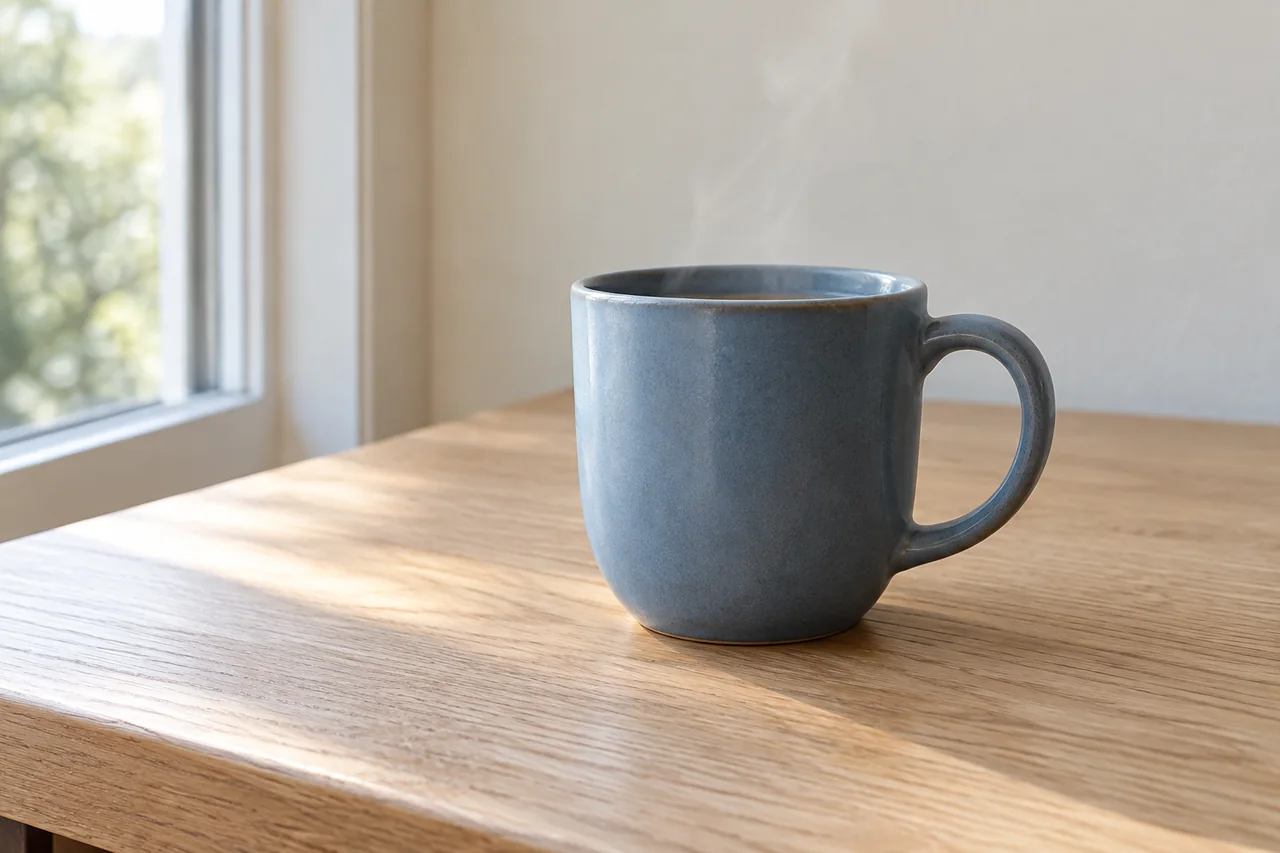
Start with the following still prompt in the image prompt field. Select a portrait aspect ratio in the interface if offered; the framing language is an instruction, not an output-size setting.
A single matte blue ceramic cup on a pale oak table beside a window, photographed from a front three-quarter angle at cup height. One rounded handle is fully visible on the right and clearly separated from the background. The cup rests flat on the table. A small amount of steam rises above the opening. Soft daylight comes only from the left window. Plain cream wall, restrained blue and warm wood palette, realistic ceramic texture, medium depth of field. The complete cup fits inside a vertical composition with clear space around its edges. The cup is the only object on the tabletop.Inspect the rim, handle opening, contact shadow and table edge at full size. The handle should not merge with steam or a background line. An attractive thumbnail can conceal a broken rim that becomes obvious when enlarged. Keep one clean image as cup-source-v1 and use that exact file in every motion test.
If the first image has a double handle, upload it to an image-editing mode that accepts references and paste this repair instruction. If your selected mode lacks image editing, generate a replacement with the still prompt above.
Edit the supplied cup image. Correct only the blue cup handle: one solid rounded ceramic handle on the right, attached at two points to the same cup, with one clear opening. Preserve the cup body, rim, size, position, oak tabletop, cream wall and soft daylight from the left. Keep the camera angle and composition unchanged. The contact shadow remains directly beneath the cup.Compare the repaired image with the original. Reject it if it fixes the handle but changes the cup design or lighting. A repair request is not a guarantee that unrelated details remain identical.
Remove conflicting instructions from the video pass
This deliberately overloaded prompt gives the same shot too many competing jobs:
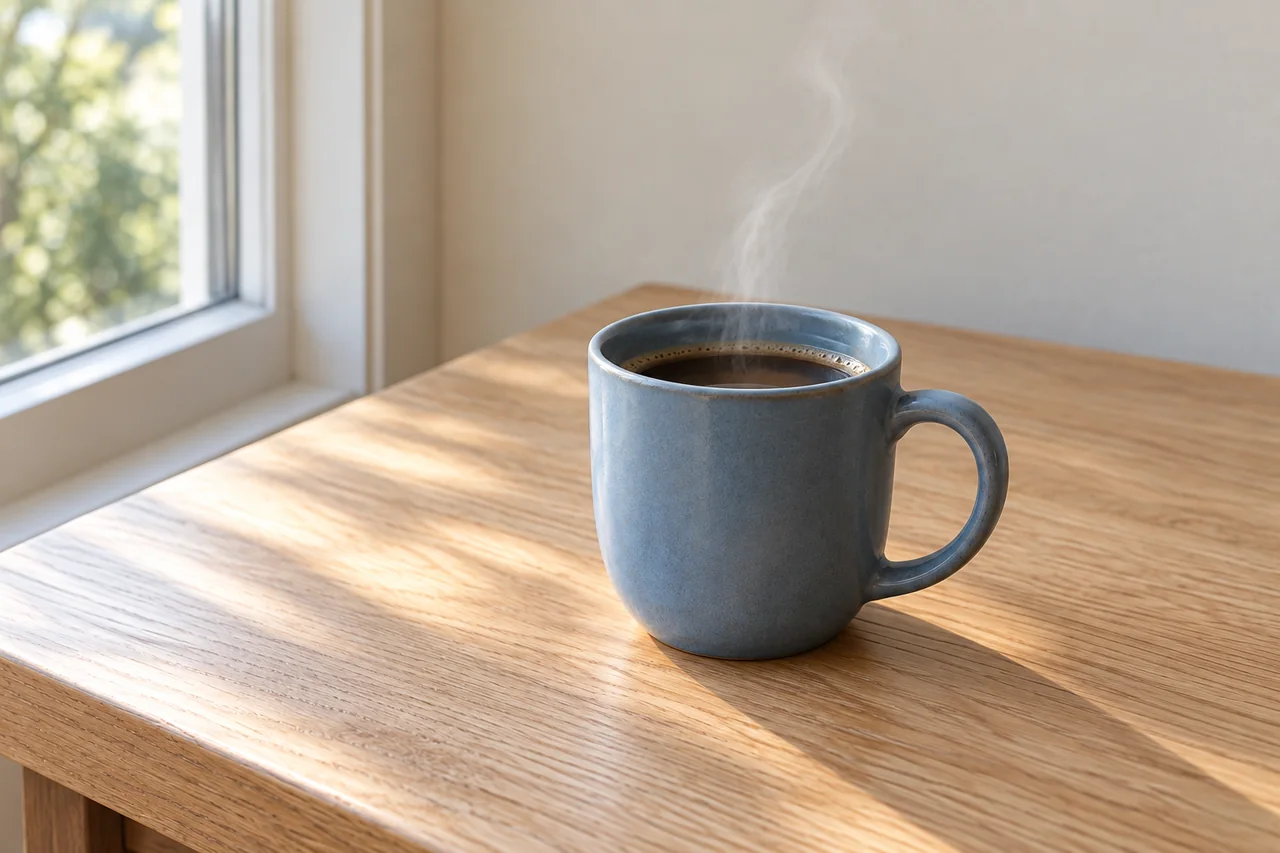
Orbit all the way around the blue cup while rapidly zooming into it. Keep the camera locked off. A hand picks up the cup and spins it as steam becomes thick fog. Morning daylight changes into dramatic sunset lighting. Keep every detail perfectly still.Do not run it as a required extra test. The conflicts are visible in the text: orbit versus locked camera, moving cup versus still details, and two lighting states. It also demands views of surfaces absent from the source image.
In Dreamina, open AI Video, upload the accepted still with the + control, choose an available image-to-video model and enter the revised motion prompt. Its documented workflow separates the prompt from model, duration, resolution and aspect-ratio controls. Dreamina image-to-video workflow
Use the uploaded image as the starting frame. The blue cup remains resting in the same position on the table. A thin stream of steam rises slowly, curls slightly to the right and dissipates above the rim. The camera stays fixed at the original angle and distance. Daylight from the left remains steady throughout. Preserve the cup silhouette, single handle and tabletop geometry. One continuous quiet shot.Choose the shortest supported duration that leaves room for your intended usable section. For this exercise, target roughly five seconds if available. Leave optional camera effects and automatic prompt expansion off for the diagnostic pass when the interface allows it. Record any controls you cannot disable. Do not paste unsupported parameter flags or a separate “negative prompt” into a field that does not provide that feature.
Add the camera only after the fixed shot works
If the static-camera result passes, make a second variant with a small push-in. Keep the still, model, resolution and duration unchanged. Replace only the camera sentence:
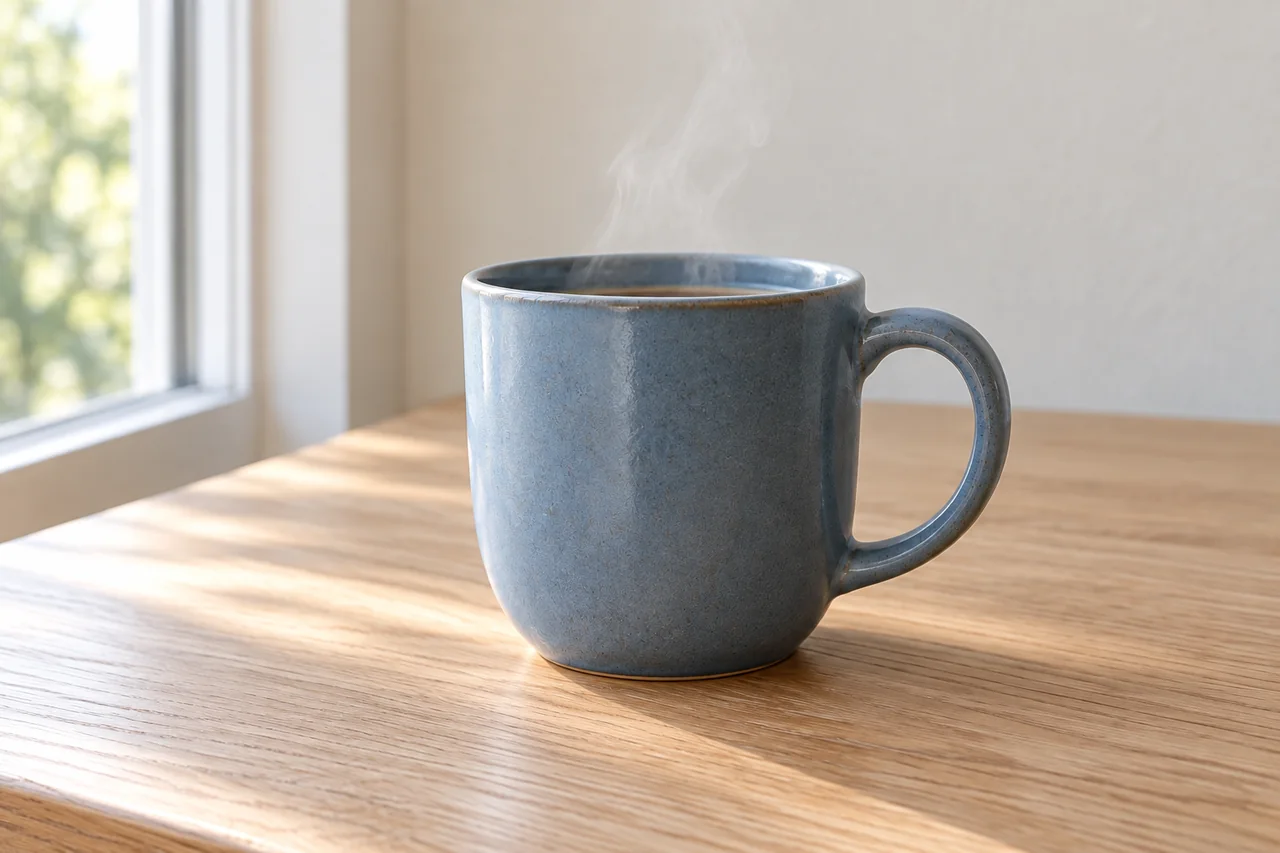
Use the uploaded image as the starting frame. The blue cup remains resting in the same position on the table. A thin stream of steam rises slowly, curls slightly to the right and dissipates above the rim. The camera moves gently straight toward the cup, ending with the whole handle and rim still visible. Daylight from the left remains steady throughout. Preserve the cup silhouette, single handle and tabletop geometry. One continuous quiet shot.Higgsfield's Cinema Studio also documents a still-first workflow with camera controls and start-frame input. You can run the same exercise there: supply the accepted still, choose single-shot generation and keep the camera control consistent with the text. A preset that requests an orbit should not accompany a fixed-camera prompt. Do not assume Cinema Studio controls appear for every third-party model in the wider Higgsfield suite. Higgsfield Cinema Studio guide
Decide whether to trim, retry or change the shot
Accept the clip when the cup keeps one handle, the table stays rigid, the light remains coherent and the motion reads normally at playback speed. Check the first and last frames as carefully as the middle. Save a usable range such as 00:00.6–00:03.8; that range is an example of notation, not a measured result.
If a defect occurs outside your usable range, trim it. If it affects the subject throughout, return to the relevant hypothesis. After two controlled repairs with the same failure, simplify the shot further or compare another available model using the same source. Repeated full reruns without a new hypothesis provide little information.
Can upscaling repair a changing face or cup shape?
Do not budget on it. A larger output does not establish consistent geometry across frames. Resolve the visible change or remove the affected portion before considering a final upscale.
Should I add “no flicker” many times?
Repeated warnings do not tell the model what the light should do. State a steady source, remove conflicting effects and compare the result. If a dedicated negative field exists, use a short relevant entry according to that model's instructions.
Is every small brightness change a failure?
No. A moving subject can naturally pass through light. Reject brightness changes when they contradict the intended scene or distract from the subject, not simply because adjacent frames differ.
When should I stop generating?
Stop when the clip meets the edit's requirements or the remaining attempts cannot answer a useful question. Use the AI video budget worksheet to set that boundary, then take accepted clips into the three-shot Reel editing workflow. Find alternative model access through the image and video tool finder.
Sources
Official documentation checked September 9, 2026. This proposed exercise has not undergone account or generation testing in Dreamina or Higgsfield, or an actual video export.