
A useful camera prompt tells the model what the camera does, what the subject does, and where the shot should finish. “Cinematic movement” supplies none of those decisions. For a practical comparison, animate the same still four times: a locked view, a push-in, a pan and a small orbit. Keep the subject motion identical so you can see what the camera instruction changed.
This exercise uses a vase beside a window. You will end with four short clips and a clearer way to diagnose unwanted movement. The suggested prompts have not been tested in Krea or Higgsfield; documentation was checked on September 9, 2026. A camera term is an instruction for a generative model, not a guarantee of a physically measured camera path.
Contents — jump to a section
First separate the two kinds of movement
If the vase spins while the background stays still, the subject is rotating. If the camera travels around a stationary vase, the visible relationship between the vase, window and background should change. Those can look similar in a quick preview, so inspect the background too.
| Instruction | Intended change | What should stay fixed |
|---|---|---|
| Locked camera | Only the flower stem sways | Frame edges and viewpoint |
| Push-in | Camera approaches the vase | Vase position on the table |
| Pan right | Camera turns right from one position | Camera's physical location |
| Small orbit | Camera travels a short arc around the vase | Vase orientation in the room |
An optical zoom changes framing without moving the camera forward. A push-in changes viewpoint as the camera approaches. Generators can confuse these, which Higgsfield's camera guide also discusses. We will inspect the result rather than accept the prompt wording as proof. Higgsfield camera-control guide
1. Build a still with visible depth
Use Krea Image with Krea 1 for the initial text-to-image exercise. Krea documents its image model picker and model-dependent settings. The point is a readable scene, so keep styling simple and choose one image before testing video. Krea image generation
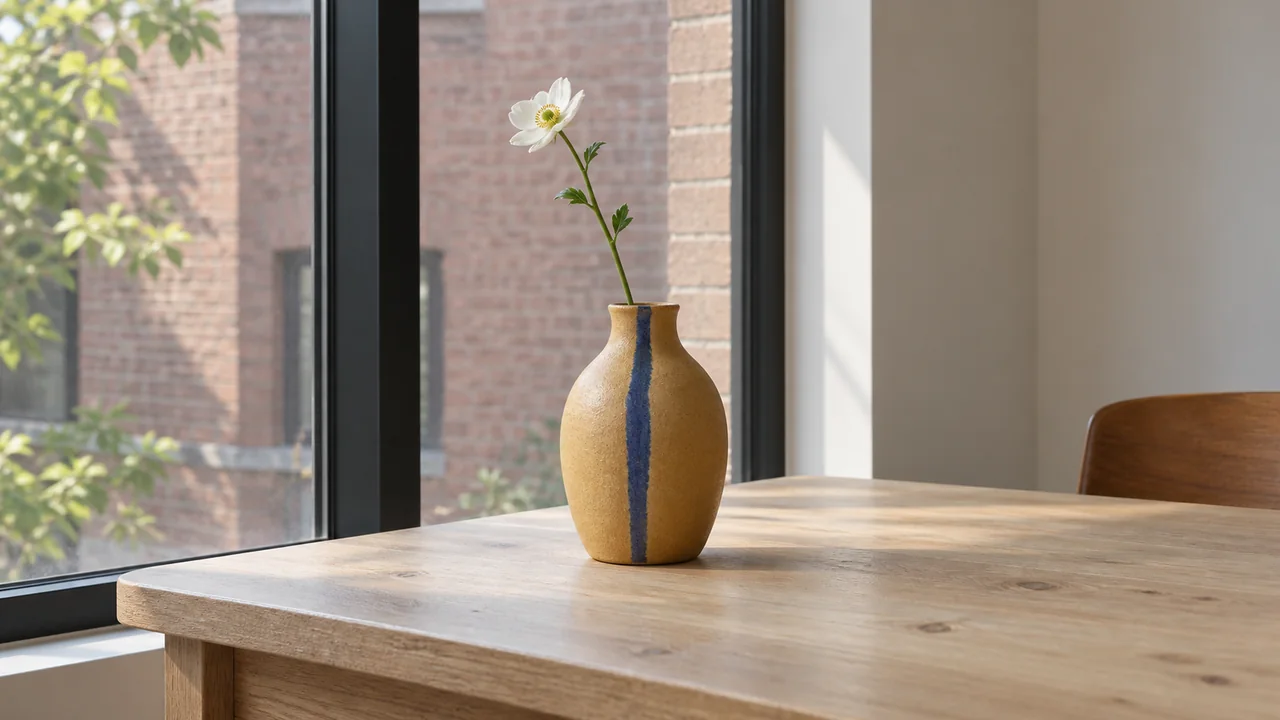
Input: text only. Settings: 16:9 if offered, ordinary generation resolution. Keep the vase away from the frame edges so a modest camera move has room.
A single matte ochre ceramic vase containing one long green stem with a small white flower stands on a pale wooden table beside a tall window. One narrow blue glaze stripe runs down the front of the vase, making its orientation visible. The vase is near the centre, with its complete base visible. A dark window mullion is clearly visible behind and to the left of the vase; a distant red-brick wall is visible through the glass. Eye-level medium view, broad soft daylight from the left, restrained natural colours, clear foreground table edge, midground vase and background wall. One realistic interior photograph, simple surfaces, no lettering or decorative clutter.You need three depth markers: the nearby table edge, the vase, and the distant wall. The blue stripe helps you tell whether the vase itself is turning; a plain round vase would hide that change. Save the approved image once. Do not generate a different still for each movement: differences in composition would make the comparison harder to interpret.
2. Keep model and settings constant
Open Krea Video and use Hailuo 2.3 with the approved image as the start frame, following its documented image-to-video route. Choose six seconds and the same aspect ratio where offered. Use the lowest available resolution at which you can inspect the vase edge and background. The documentation notes that available controls vary by model. Krea video generation
Do not add an end frame or a second reference for this first comparison. Generate four separate clips with the same model, source image, duration and resolution. Save the exact settings and prompts with the clips. This is a practical comparison of visible results, not a controlled benchmark: stochastic generation can differ between runs.
If Hailuo 2.3 is inaccessible, Higgsfield documents Kling 3.0 start-frame input. Use that route for all four clips with matching supported settings; do not use one platform for the push-in and another for the orbit and attribute every difference to camera language. Higgsfield Kling 3.0 guide
3. Copy one movement prompt per generation
The flower stem has the same small sway in every version. The vase remains planted on the table. The repeated wording is deliberate: the camera instruction is the variable being changed.
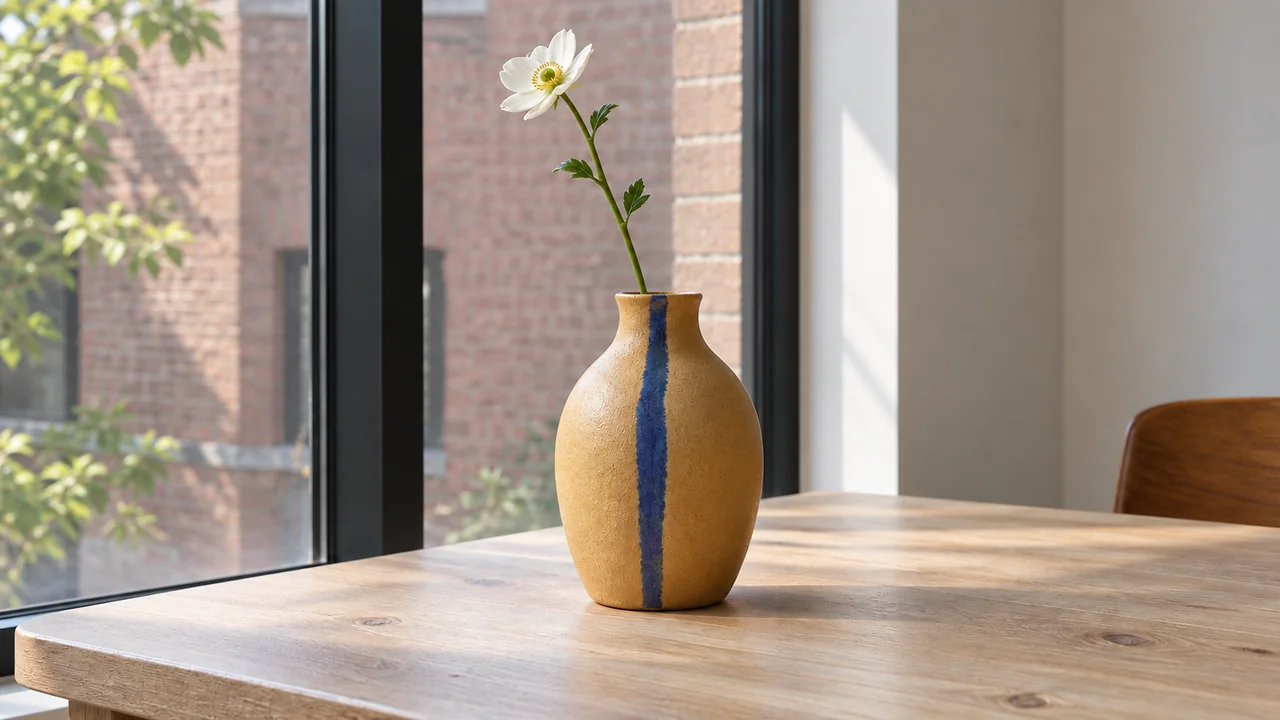
A. Locked view: establish the baseline
Mode: image-to-video. Input: the approved vase still. A locked shot helps reveal whether apparent camera drift is already present without a movement request.
The flower stem sways slightly once and settles. The vase remains firmly planted in its original position and orientation on the table. The camera is locked on a tripod for the entire clip. Preserve the exact starting framing and steady window light. The window frame and distant wall remain stationary in the image.B. Slow push-in: move toward the subject
The intended end frame is slightly closer, with the vase base still visible. Asking for a modest change gives you a clearer acceptance target than asking for a dramatic rush forward.
The flower stem sways slightly once and settles. The vase remains firmly planted in its original position and orientation on the table. The camera slowly moves straight forward toward the vase at a steady pace, ending in a slightly closer view with the vase base still visible. Keep a fixed focal length; create depth change from camera travel rather than a zoom. Preserve the window light.C. Pan right: turn from a fixed position
The vase should travel toward the left side of the frame as the camera looks farther right. It should not slide across the tabletop.
The flower stem sways slightly once and settles. The vase remains firmly planted in its original position and orientation on the table. From a fixed tripod position, the camera slowly pans right through a small angle. The vase moves toward the left third of the frame while remaining in the same place on the table. Keep the horizon level and the focal length fixed. Preserve the window light.D. Small orbit: change the viewing angle
Use a short arc, not a full circle. A large orbit asks the model to invent more of the room hidden outside the start frame.
The flower stem sways slightly once and settles. The vase remains firmly planted in its original position and orientation on the table. The camera travels slowly to its right along a short shallow arc around the vase, keeping the vase near the centre and at approximately the same size. Reveal only a small change of viewpoint. The vase itself does not rotate. Preserve the window light and level camera height.4. Review the motion, not just the prettiest frame
Download the clips and place them in four equal sections of an editing timeline. Label them in the editor rather than asking the video model to render labels. Watch each once at normal speed, then inspect a beginning, middle and ending frame.
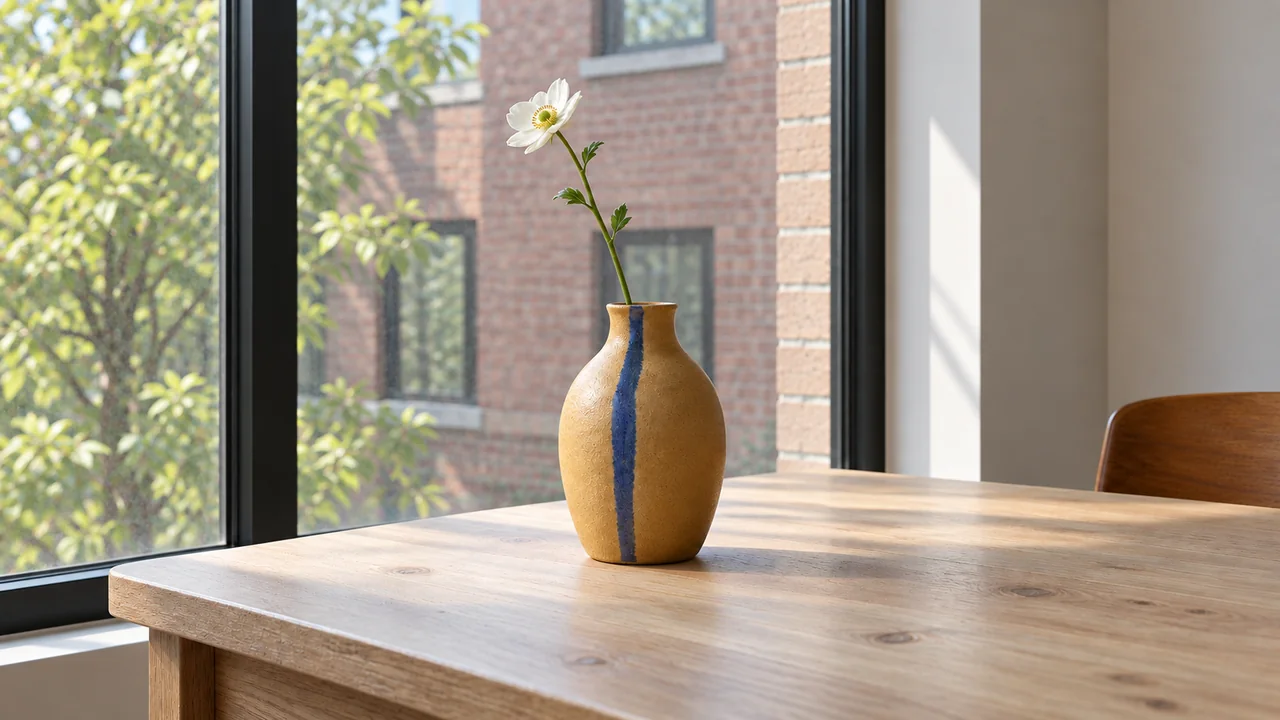
For the locked shot, compare the mullion with the frame edge. For the push-in, look for plausible changes between near and distant objects, not simply the entire image scaling uniformly. For the pan, check that the vase moves within the composition while staying attached to its original place on the table. For the orbit, check changing overlaps between vase and window; a vase turning like a product turntable fails this brief.
Write one observable note per clip: “vase base cropped,” “camera drifts left,” or “wall bends after three seconds.” Avoid notes such as “not cinematic enough,” which do not identify a repair.
Fix one wrong movement without rebuilding the image
If the orbit becomes a spinning vase, use the original still again and reduce the arc. This replacement motion prompt removes the flower sway too, so you can focus on the main failure:
The vase and flower remain completely still on the table. The camera makes a very small sideways arc to its right, just enough to change the overlap between the vase and the window mullion. Keep the vase near the centre at nearly constant size. The vase retains the same orientation in the room throughout. Maintain level camera height and steady light.If the push-in still becomes a zoom, decide whether a simple reframing meets the actual job. For a background clip behind a title, it may. For a demonstration of spatial camera motion, reject it and try a shorter movement or another model using the same source. Do not describe a failed dolly as successful because the result looks attractive.
Export a short comparison at the source frame rate and supported resolution. Review the exported file on the screen where you intend to use it. When choosing a move for a story, connect it to the shot's purpose: the three-shot storyboard guide explains how to assign that purpose first.
Before testing another model
Should I add “35 mm” or “85 mm” to every prompt?
Only when the intended framing or perspective needs it. A lens phrase in text may guide appearance, but it does not establish a measured physical lens. For this comparison the same still supplies the initial view.
Can I combine a pan, orbit and push-in?
You can attempt it later. First confirm that each single movement works. Otherwise an unsuccessful compound move gives you several possible causes at once.
Why keep the source image identical?
It keeps the available geometry and composition comparable. You still need repeated takes to assess reliability; four single generations do not establish a universal model ranking.
Does a camera preset override the prompt?
That depends on the platform and selected model. If a specific camera control is available, make it agree with the text. Do not combine a static preset with an orbit request. Check current capabilities in the image and video tool finder.
Sources
Official documentation checked September 9, 2026. The comparison is a proposed exercise; no model success rate or account entitlement was measured.