
Build this workflow in two stages: approve a Seedream still, then give that exact image to Seedance as the first frame. Save the final video separately from the generation task. BytePlus supplies the service, ModelArk is the workspace and API platform, and Seedream and Seedance are different model families with different input and output contracts.
The exercise below creates a quiet greenhouse shot with moving leaves. It is an original production plan, not a BytePlus account or generation test. Official documentation was checked on 9 September 2026. Use only models activated for your account; access and supported parameters can differ by version and region.
Contents — jump to a section
Choose a workspace before choosing parameters
In ModelArk, check the selected region and available model services. The regional documentation lists separate API hosts and region-scoped resources, so do not mix a key or inference endpoint from one region with another region's host. Confirm the requested image and video models are available together before funding a test. ModelArk regions
For a browser-only route, use the image-generation API Explorer form and the video Model Playground. The image tutorial explicitly provides the Explorer as a way to try image generation with adjustable parameters. You do not need to build an application to use that form. Sign in, select an activated Seedream model and open its image-generation example. BytePlus image generation tutorial
Keep a job note with the selected model names, region, source filename and intended output. Use a plant scene for the first test: the workflow can be learned without introducing face, dialogue or lip-sync requirements.
Generate a still that leaves room for movement
Paste this into the image prompt field. Choose single-image output. In the size control, select a supported resolution such as 2K when listed for the chosen model; request a portrait composition in the prompt or use supported explicit dimensions. Inspect the actual dimensions afterwards.
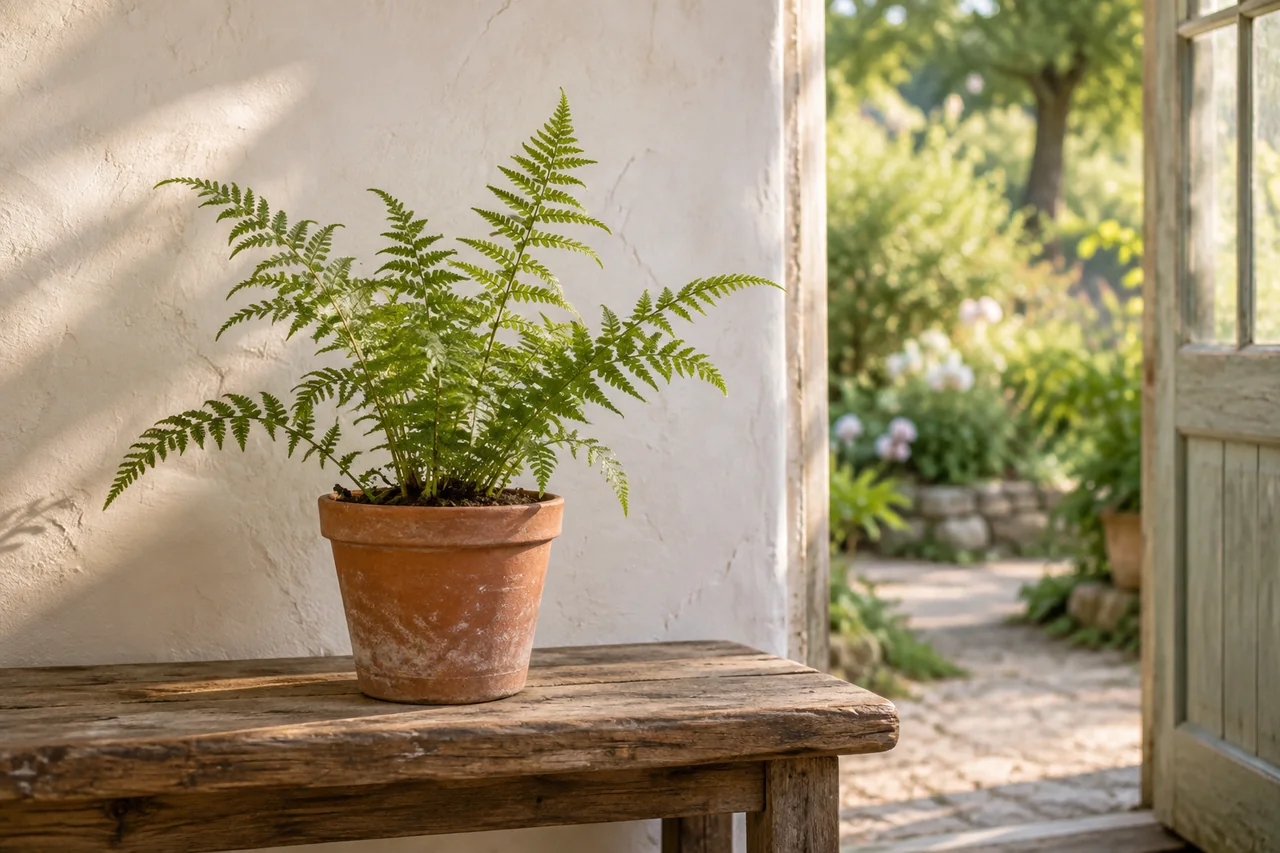
A small greenhouse doorway at early morning. A single terracotta pot containing a young fern rests on a low wooden bench in the foreground. The fern's fronds are separated clearly against a pale plaster wall. Behind it, the open doorway reveals a softly blurred garden. Gentle daylight enters from the left. Eye-level medium shot, realistic leaf surfaces, natural terracotta texture, restrained green and warm brown colors, moderate depth of field. Vertical composition, complete pot visible, fern comfortably inside the frame with space for its leaves to move. The bench is level and the pot sits firmly on it.Run the image request once and save the resulting full image. Check the pot rim, bench legs, leaf stems and doorframe. If two fronds fuse together or the pot floats, repair the image before animation. For an image-editing request, supply the image in the image input and replace the prompt with:
Edit the supplied greenhouse image. Separate the overlapping fern fronds so each visible frond connects naturally to the plant in the terracotta pot. Keep the pot, bench, doorway, wall, camera position and left-side daylight unchanged. Preserve the original leaf color and realistic texture. Maintain the clear space around the plant and the contact shadow where the pot rests on the bench.Accept the corrected image only after checking that the repair did not redesign the rest of the scene. Download it and give it a stable local name such as greenhouse-approved-v1.png. That file, not an earlier unapproved variation, is the handoff to video.
Animate the approved image in the browser
Open the selected Seedance model in Model Playground and choose the mode based on a first-frame image. Upload the accepted greenhouse image into that input, leave the last frame empty for this exercise, and paste the motion prompt. The official video tutorial distinguishes first-frame generation, first-and-last-frame generation and broader reference workflows. Use the first-frame route when the opening composition is the thing you want to anchor. BytePlus video generation tutorial
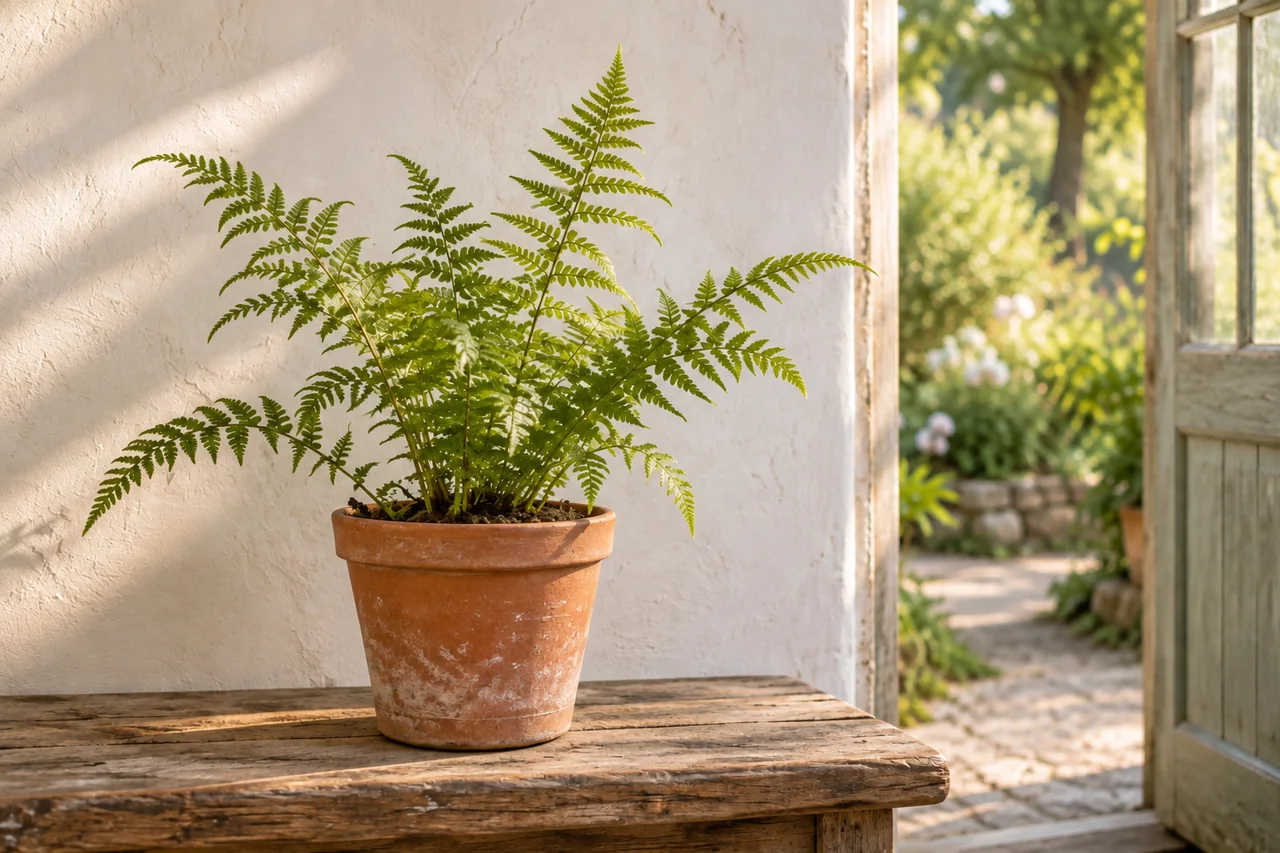
Start from the supplied greenhouse image. A faint breeze moves only the tips of the fern fronds gently to the right, then they settle back toward their original positions. The terracotta pot and wooden bench stay still. The camera remains fixed at the starting angle and distance. Soft daylight from the left stays constant. Keep the doorway, wall and plant identity consistent through one continuous quiet shot. The movement is small enough that all leaves remain inside the frame.Choose a short supported duration, for example five seconds when available, and start with a supported preview resolution. Keep the image's portrait framing. If your selected mode only allows an adaptive ratio, use it instead of forcing an unsupported value. Set audio explicitly where a control is available; this exercise can be edited with a separate ambient track.
Review the displayed charge and submit once. Wait for completion, open the result, and download it. Check that leaves move rather than melt, the pot keeps its rim, the bench remains rigid and the doorway does not breathe. The browser route is complete at this point; the API section is for readers who want to repeat the handoff from their own software.
Map the same job to the API
The following is a request map with placeholders, not a runnable script. Copy the current model ID or inference endpoint ID from your account, rather than turning a marketing name into an ID. Use the region's documented base URL and load its API key from a server-side environment variable. Do not put a key into a website's JavaScript, a prompt, or a shared request log.
The image operation is POST /images/generations beneath the regional /api/v3 base. Its core handoff fields are model, prompt and size; requesting URL output lets you inspect the returned image before making a separate video request. Save the accepted output locally and, when needed, host a controlled copy for the video service to read.
For video, the documented operation is POST /contents/generations/tasks. A minimal first-frame content structure is shown below. Replace the model ID, image URL and motion-prompt placeholders with the approved choices. Add output parameters only after checking the selected model's accepted values. Create a video generation task
{
  "model": "YOUR_ACTIVATED_VIDEO_MODEL_OR_ENDPOINT_ID",
  "content": [
    {
      "type": "text",
      "text": "PASTE_THE_GREENHOUSE_MOTION_PROMPT_HERE"
    },
    {
      "type": "image_url",
      "image_url": { "url": "YOUR_PROVIDER_READABLE_IMAGE_URL" },
      "role": "first_frame"
    }
  ]
}
An image URL must resolve to an image the service can retrieve, not a sharing page that requires your browser login. For a private asset, use an appropriate limited-lived access URL that remains valid while the job reads it, or a supported image input method from the reference. A local path such as C:\projects\fern.png is not a remotely readable URL. Keep input files within the current model's size and format limits.
A successful create response returns a task ID; it does not mean the video is ready. Save that ID before doing anything else. Poll GET /contents/generations/tasks/{id} for the same task. Queueing and running states need patience; succeeded permits output retrieval. Stop on terminal failure, cancellation or expiry, and record the error. On success, the documented result contains content.video_url, whose link is valid for 24 hours. Download it into your own storage promptly. Retrieve a video generation task
Use a bounded polling loop with a delay, increasing that delay on throttling. If the create request times out after transmission, check task history before submitting again: the first job may already exist. A local polling deadline means “stop waiting here,” not “create a replacement job.” Retain the task ID so work can resume.
Fix the input or motion, not every field at once
If the request fails before generation, inspect model activation, region, authentication, input accessibility and schema. Those errors need configuration changes, not a more descriptive creative prompt. If the API succeeds but the plant changes shape, keep the accepted still and reduce the motion:
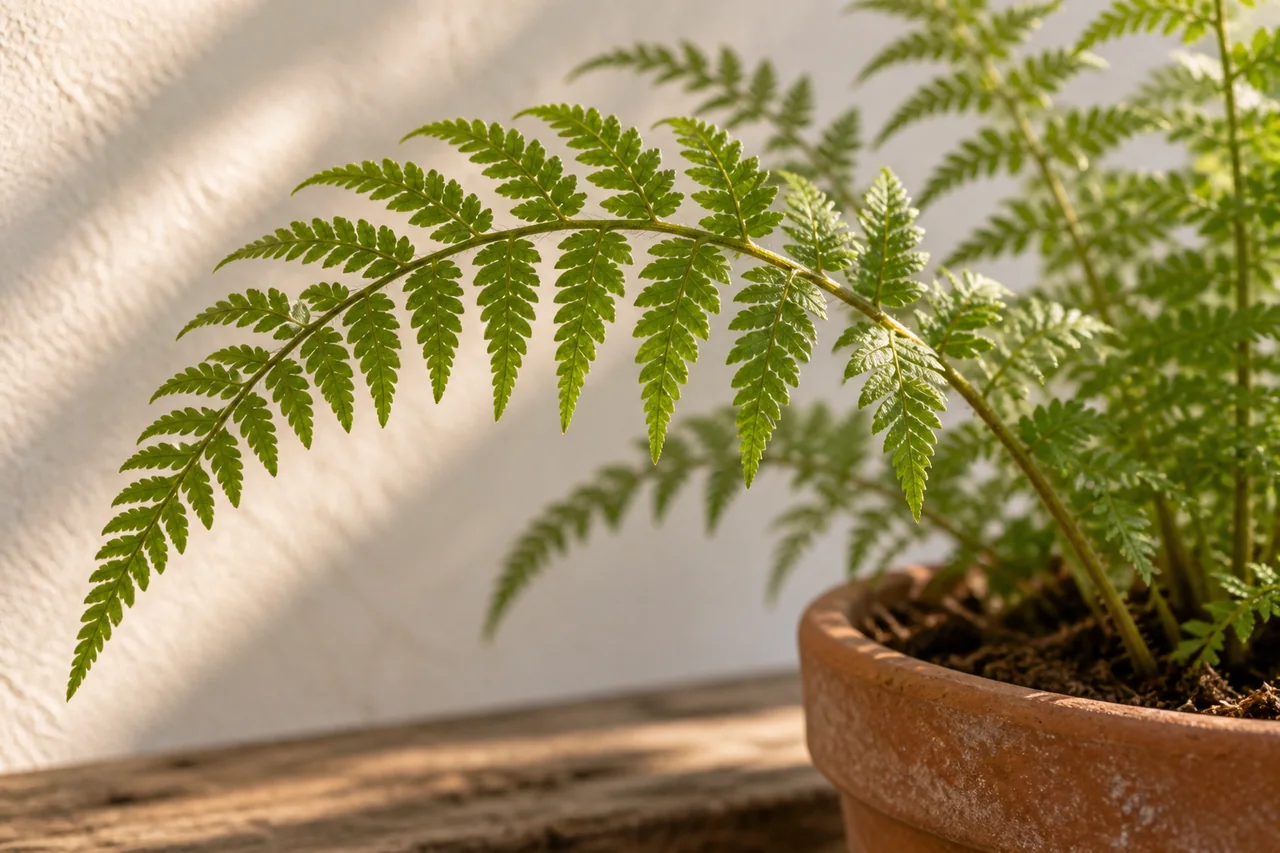
Use the supplied greenhouse image as the first frame. The camera, terracotta pot, wooden bench and doorway remain stationary. Only the outermost tips of two fern fronds make a very small movement to the right before settling. Preserve the plant silhouette, leaf texture and steady daylight from the left. Keep the entire scene in the same composition for one continuous shot.Trim the accepted range in an editor, add ambience separately and export for the intended delivery format. Store the still, prompts, selected model versions, settings and downloaded clip together. A task URL alone is not an archive.
Can I substitute Seedance wherever Seedream appears?
No. The image operation returns images; the video operation creates an asynchronous task. They need separate model selections and request handling even inside the same platform.
Does a reference image mean the video will begin with it?
Not necessarily. Use the documented first-frame input role for that purpose. A general reference can guide appearance without defining the opening frame.
Should every frame match the starting image exactly?
Movement requires change. Judge whether the subject, space and lighting remain coherent, not whether every pixel is identical. If the motion keeps failing, work through the distortion diagnosis guide.
When is the API worth setting up?
Use it when repeated jobs need saved inputs, task tracking and reliable retrieval. For an occasional clip, the browser route may be sufficient. Set a trial allowance with the video budget workflow before turning one shot into a batch.
Sources
Official documentation checked September 9, 2026. This proposed exercise has not undergone account or generation testing in BytePlus, or an actual video export.